
The Report Designer is a tool that lets you build reports as you need. In this tool, you're able to create different workflows based on various data sets that are available to you for both the QBR and GRC modules. Different cover page styles and variations can be implemented through the Report Designer tool, as well as adding custom marketing elements.
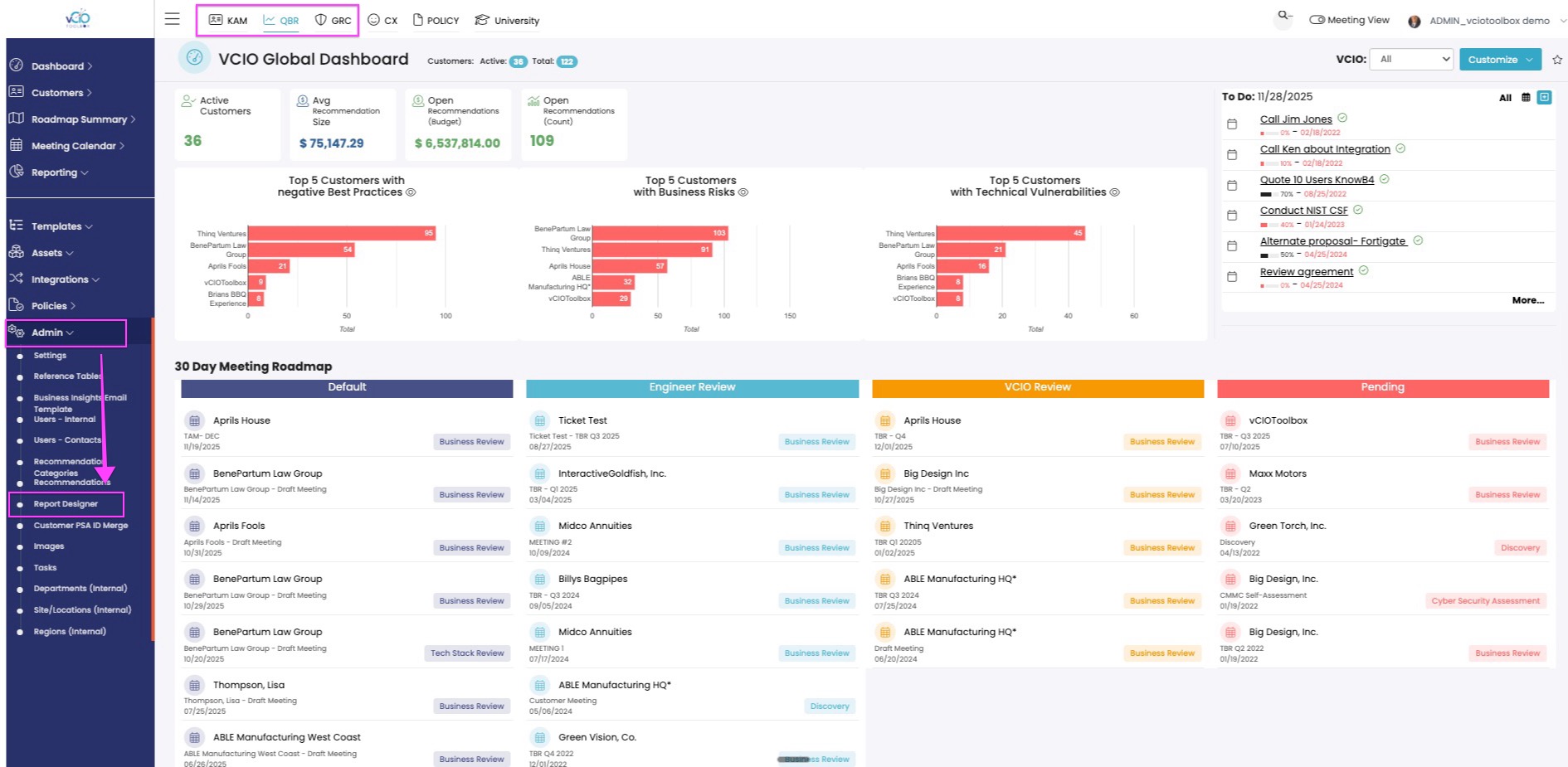
1. Navigate to the Report Designer from either the KAM, QBR, or GRC modules by going to the left-hand menu, clicking Admin > Report Designer.
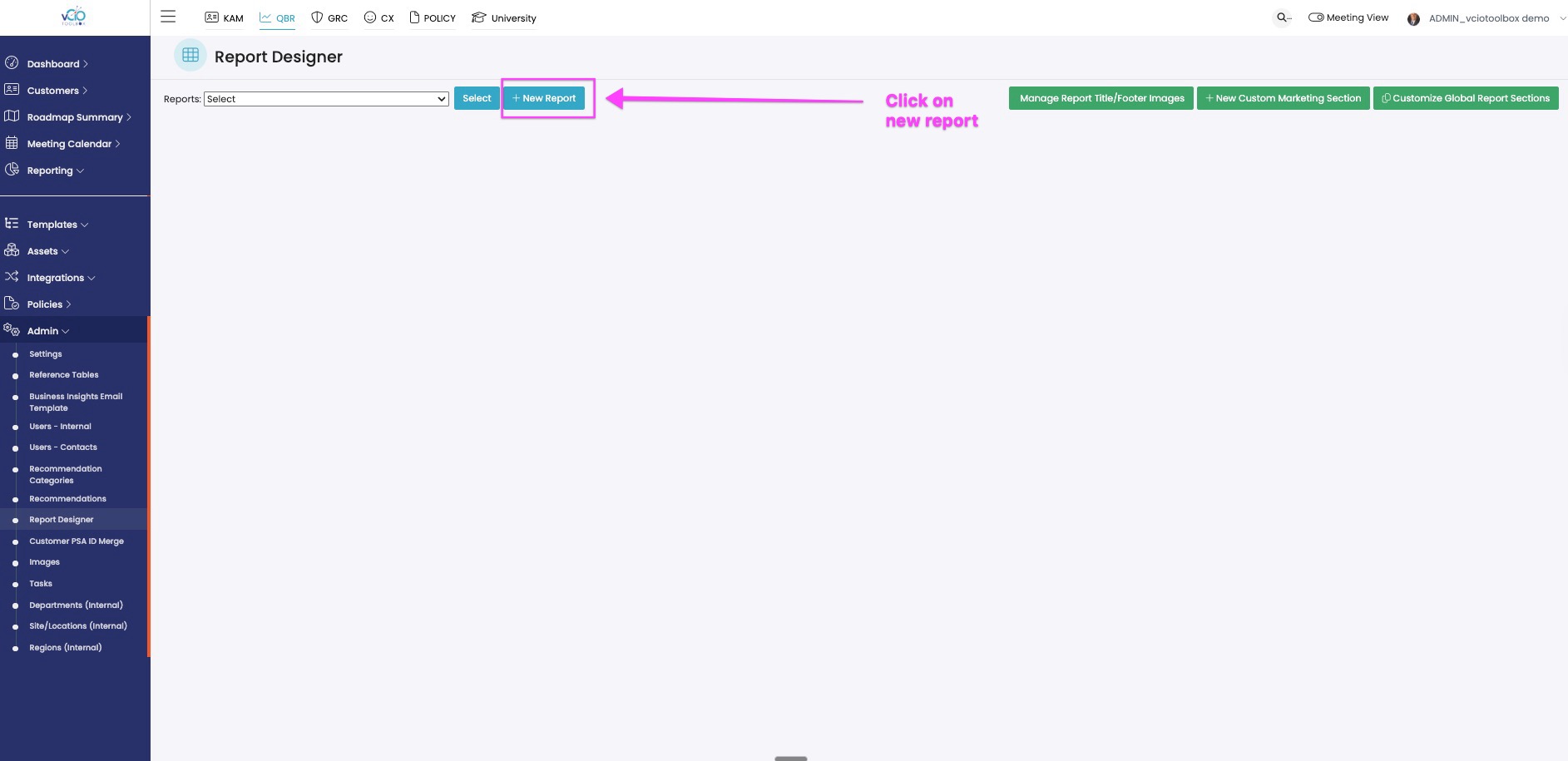
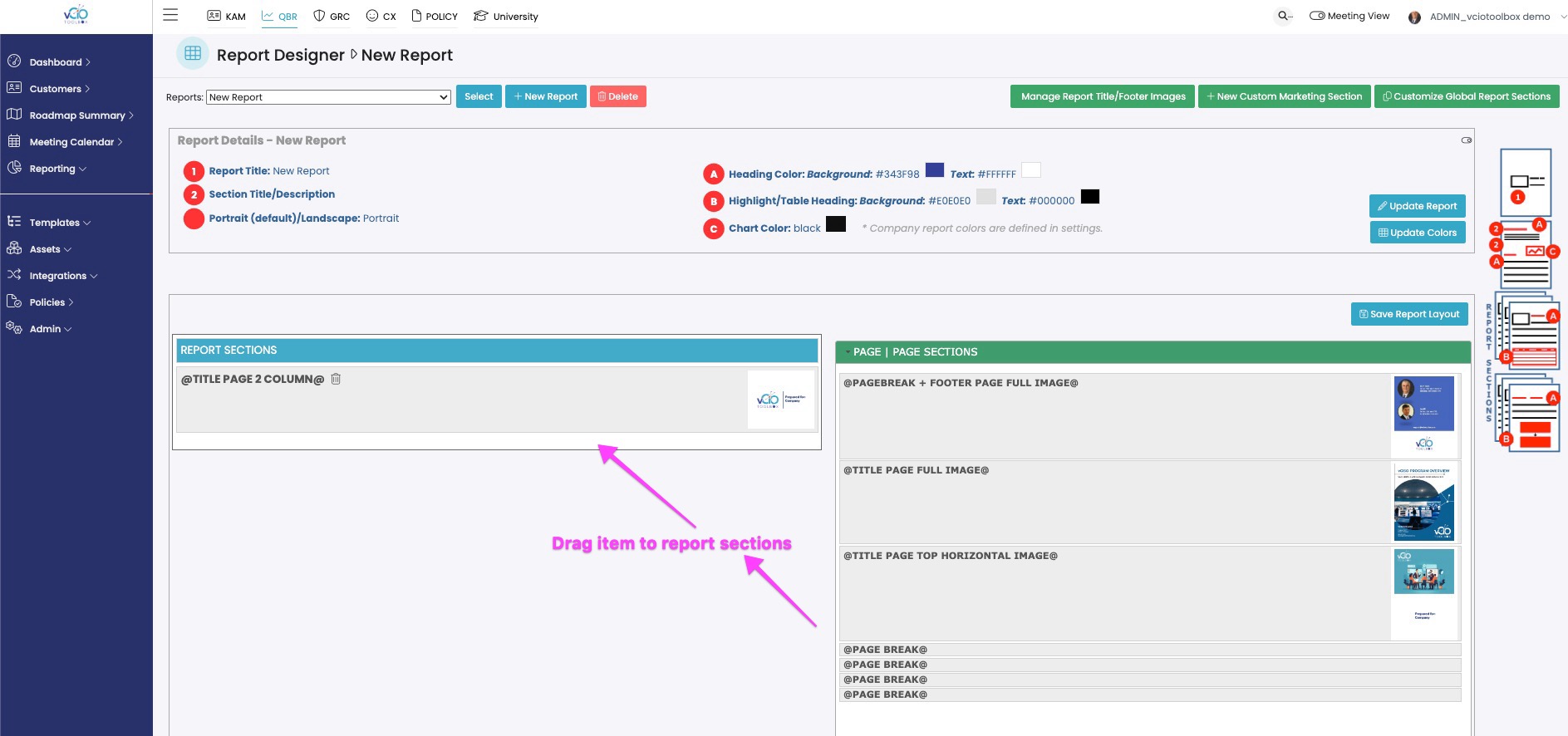
2. Click on "New Report" to start building a new custom report.
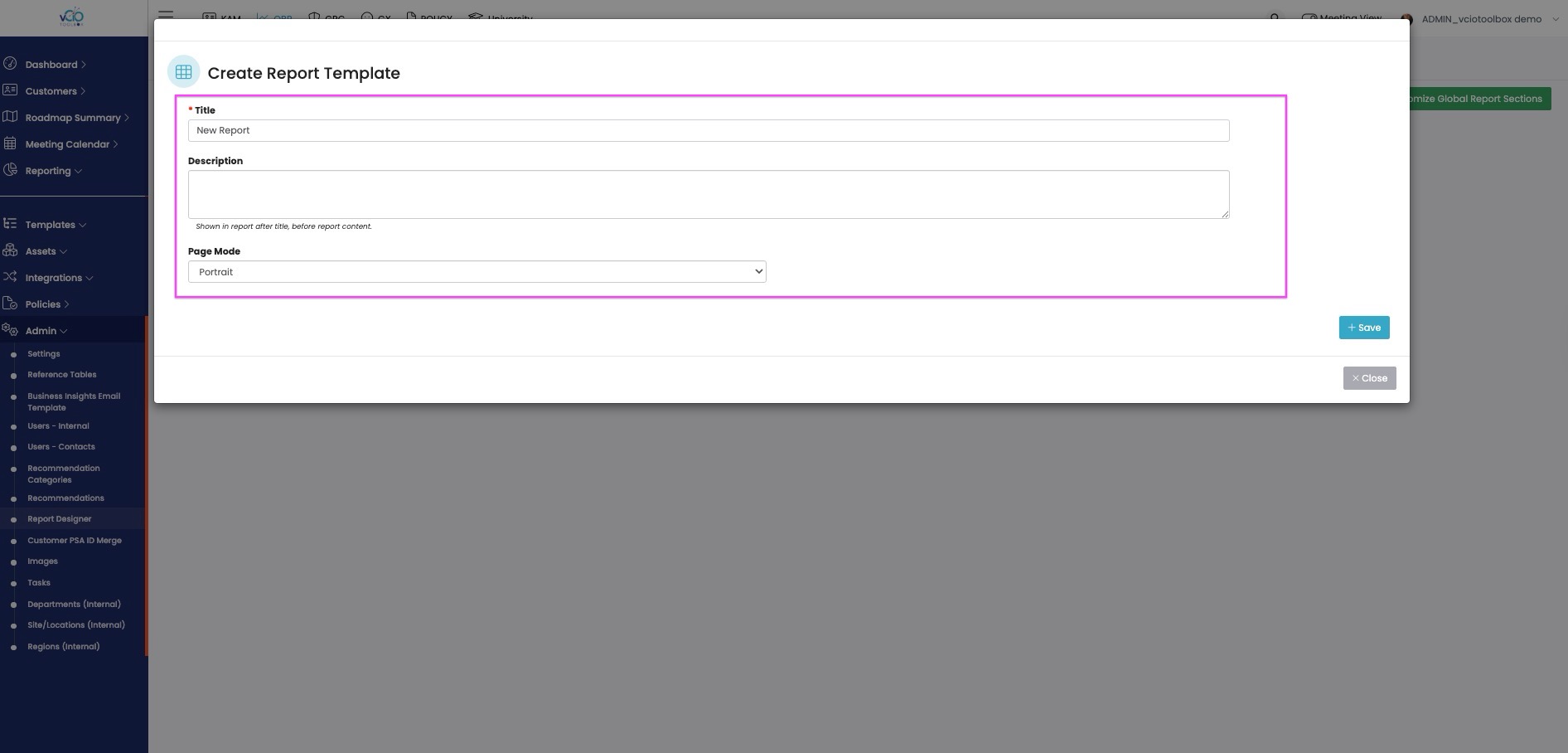
3. Title your new report so it is something meaningful to you. You can also add a description, set it up in portrait or landscape mode.
4. This will open up the designer tool on the left-hand side. You will assemble your report sections on the right-hand side, where you have all your options to build reports.
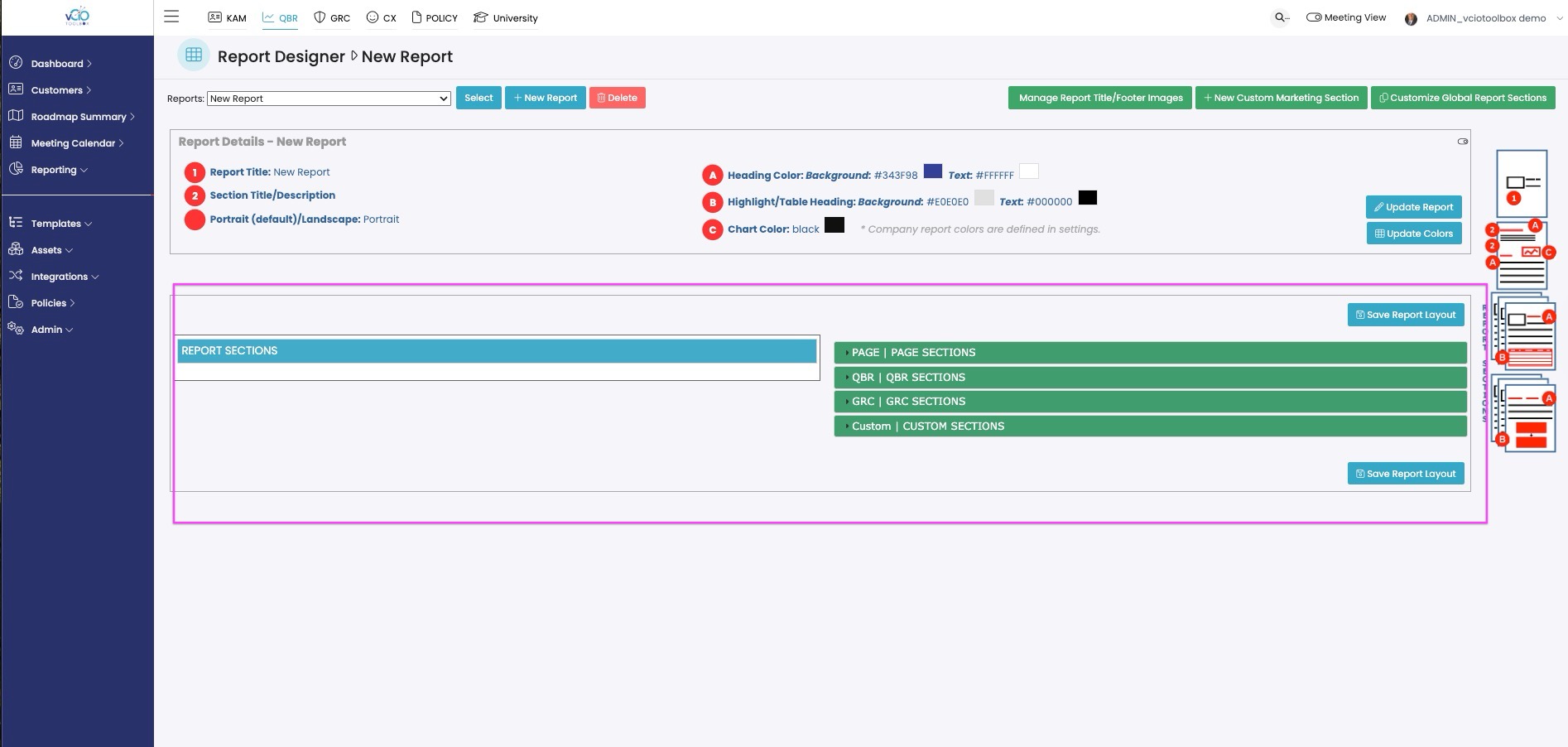
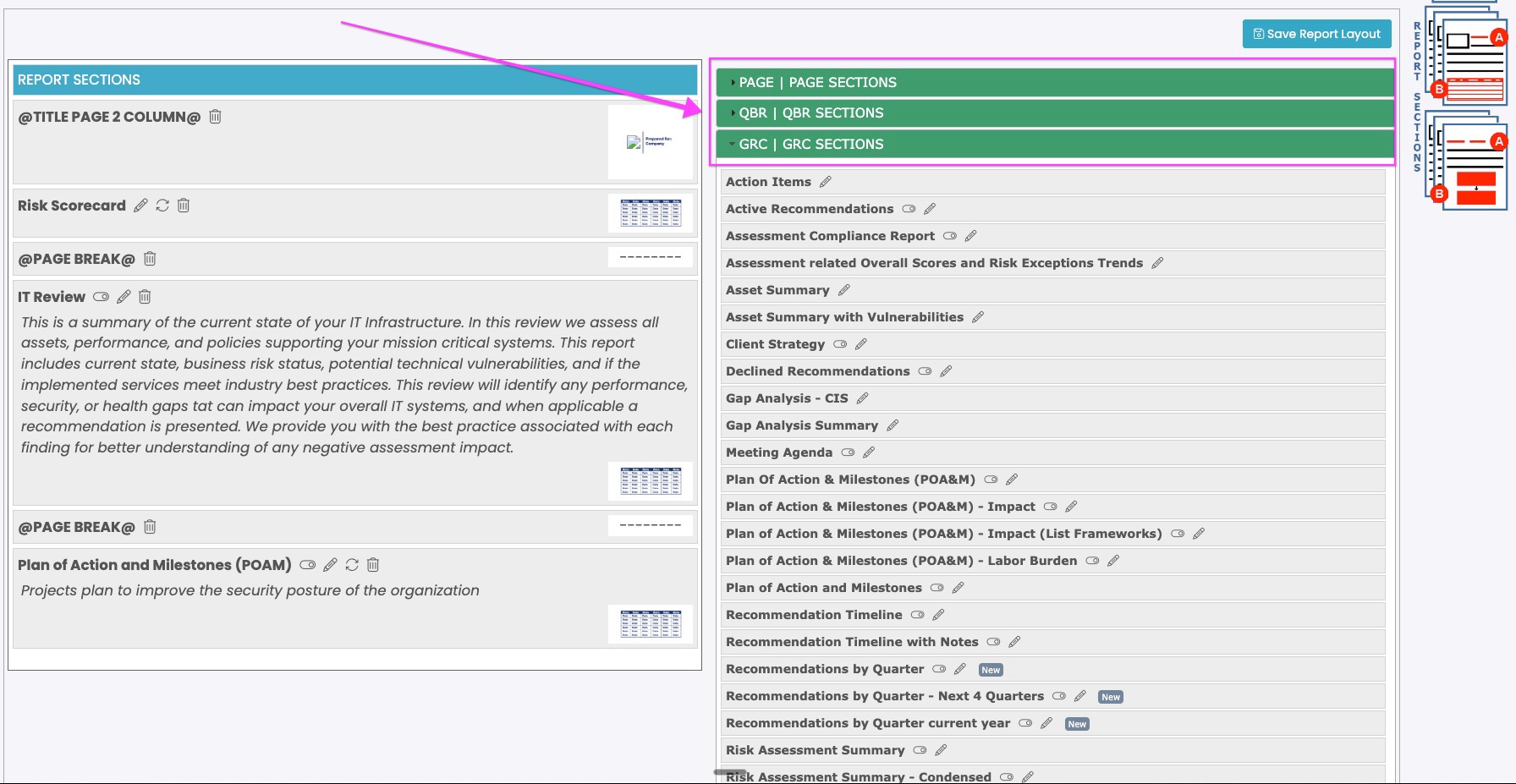
5. Select the page sections drop-down, and there you will see all your cover page options you can choose from for your reports. Drag your item from the right-hand column to the left-hand column.
6. We have sections for building different report workflows using pre-built data sets, including QBR and GRC sections. Please use the data as you see fit for your reporting requirements.
7. Once you are done building your report, click on the Save Report Layout button. This will lock in that reporting and make it available for use.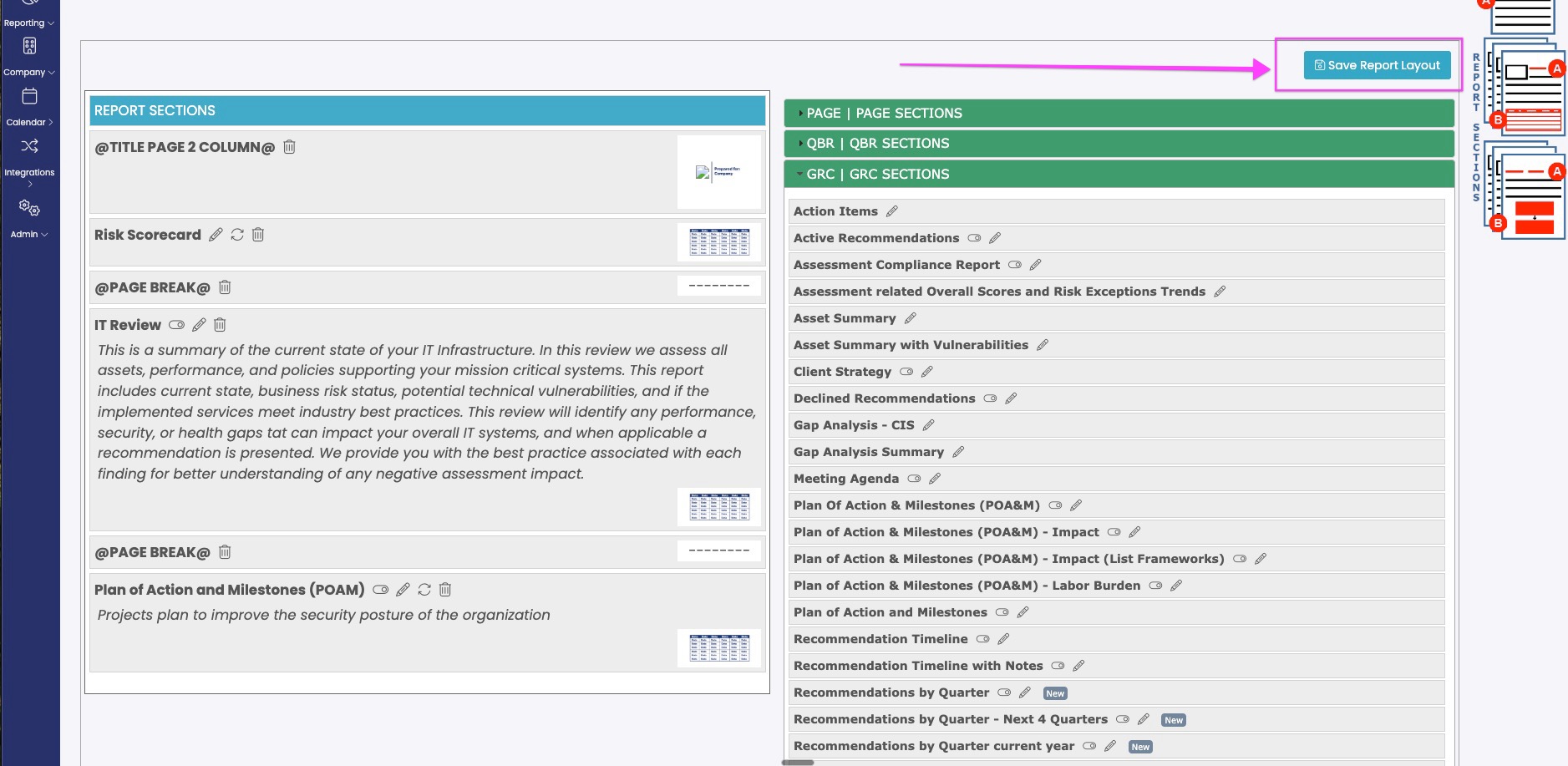
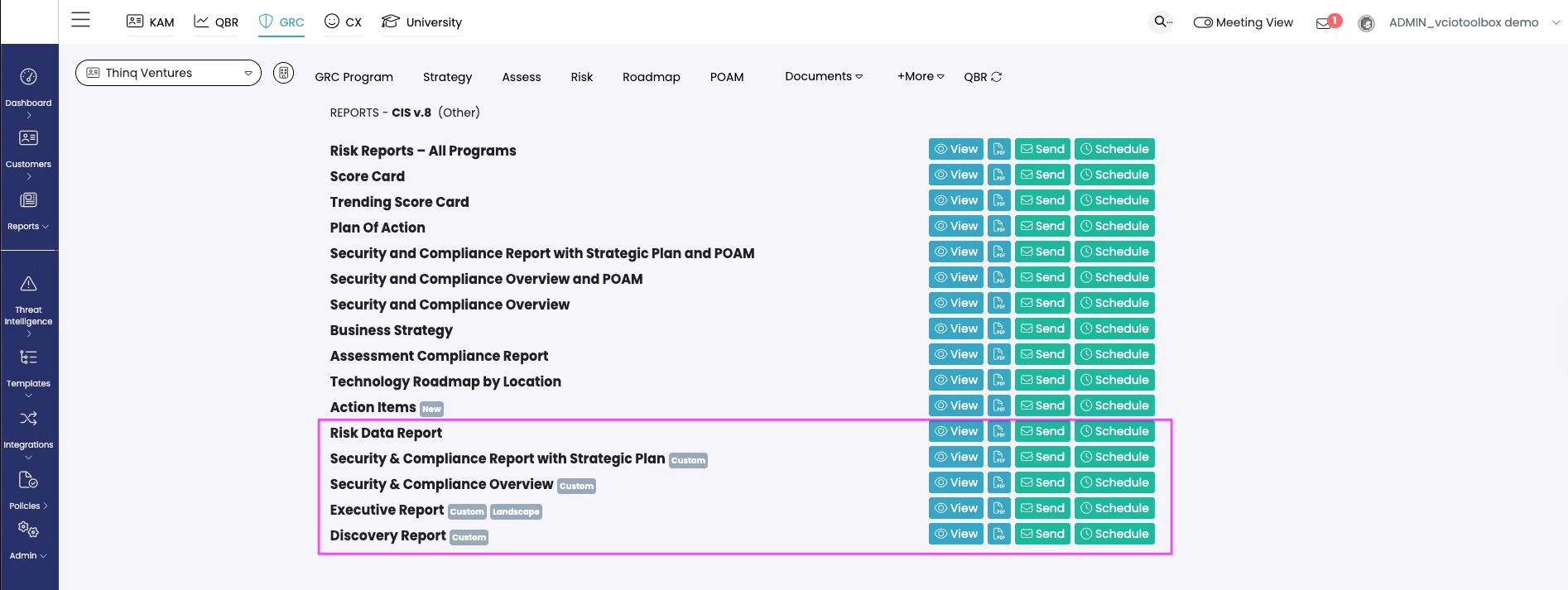
8. To access your newly built report, go to any of your customers' IT review workspaces (whether it be in QBR or GRC) and click on More > Reports. Scroll to the list that will now show any custom reports that have been built within the system, available for use.
If you have any questions, please reach out to support@vciotoolbox.com.
Related Articles
Adding Custom Marketing/Artifacts to the report