
vCIOToolbox recognizes that asset types come in many shapes and varieties, depending on the customizations our customers have applied to their systems and how the RMM systems present those assets when imported into vCIOToolbox.
To streamline this process, we have created an asset type mapping tool. This tool allows you to view any imported asset types and map them to standard asset categories, which will drive Fusion 360 automations and asset management policies within vCIOToolbox.
1. Import your assets into vCIOToolbox. We support imports from PSAs, RMMs, and documentation tools. See our integrations list for the latest integrations.
These imported assets will create the asset type from the originating system presented in the vCIOToolbox Asset Display.
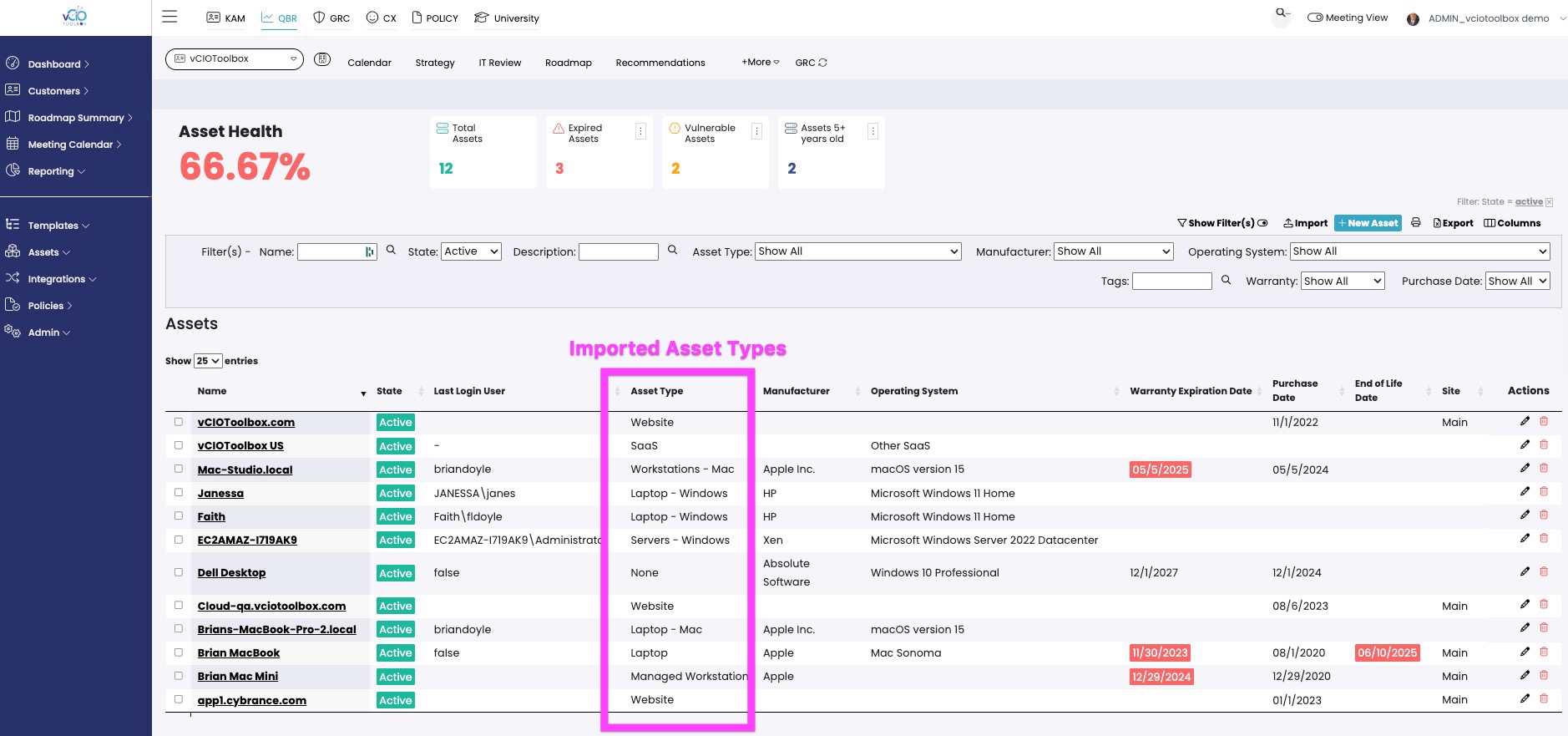
2. The asset mapping tool will translate these imported asset types and allow you to map them to standard asset categories that will then be used throughout the system.
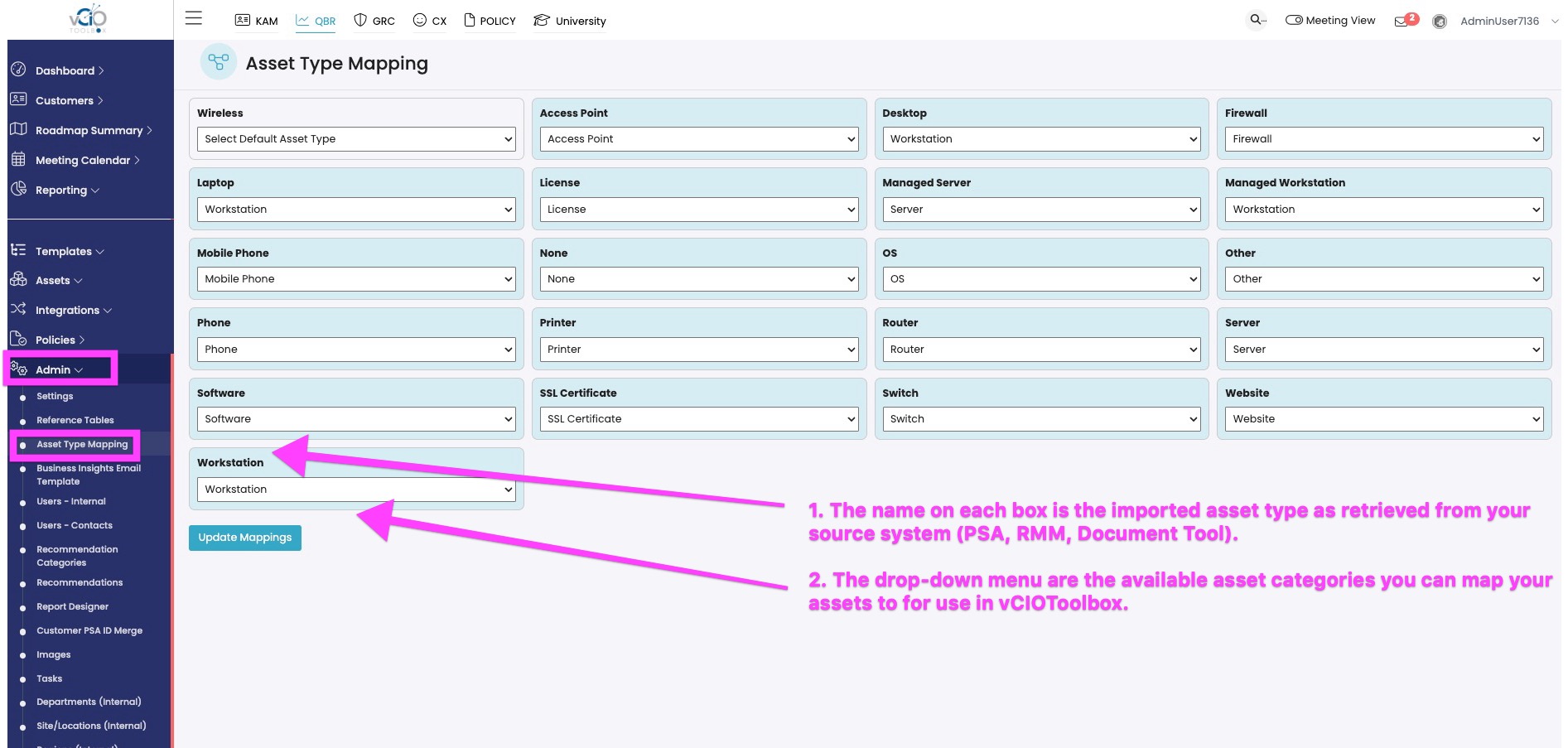
3. Once you have mapped your assets, you will now be able to run the automation rules in Fusion 360, as well as attach policies in the asset management area to generate end-of-life dates.
If you have any additional questions, please reach out to support@vciotoolbox.com.