
To ensure your data isn't used to train the Anthropic LLM, use a professional or business version of Claude and turn off your privacy settings. See the image below for details.
vCIOToolbox is not responsible for misconfigured Claude clients allowing data to be shared with the LLM. Review your configuration with your IT team before connecting Claude.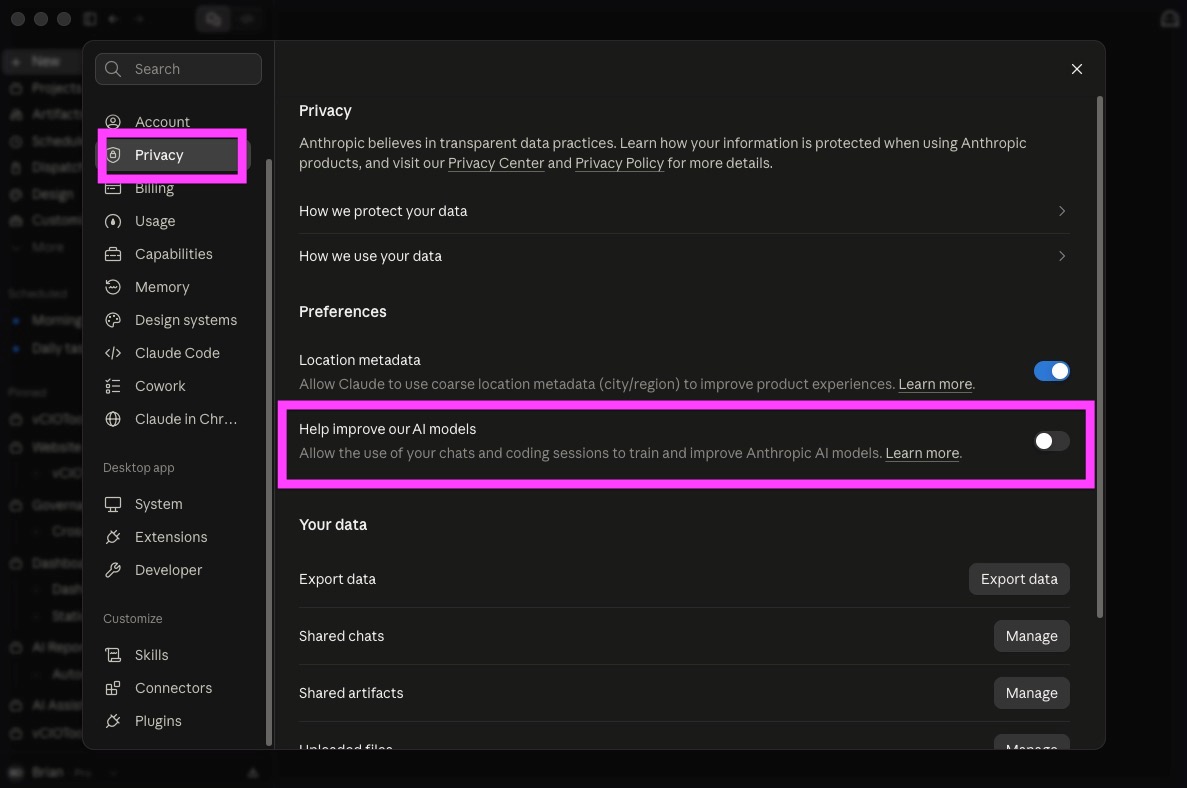
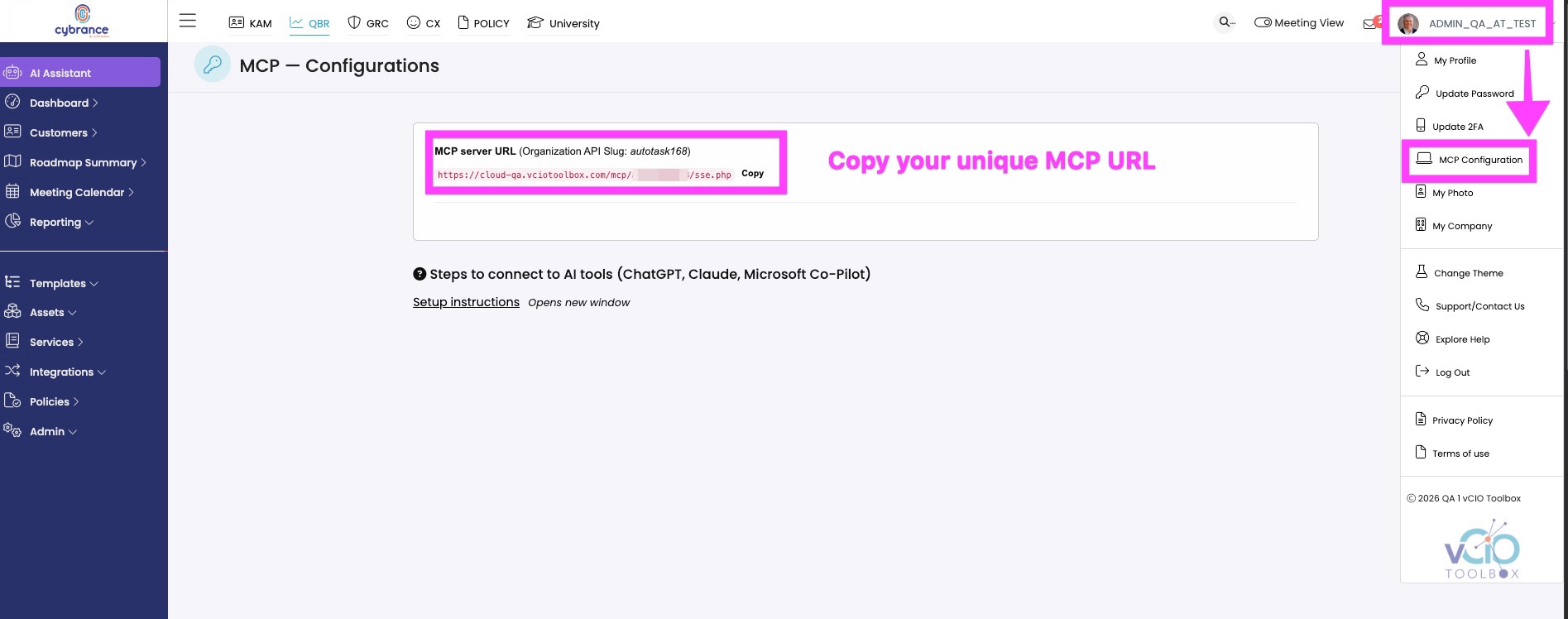
1. Inside vCIOToolbox, access and copy your MCP server URL
2. Open Claude and navigate to Settings.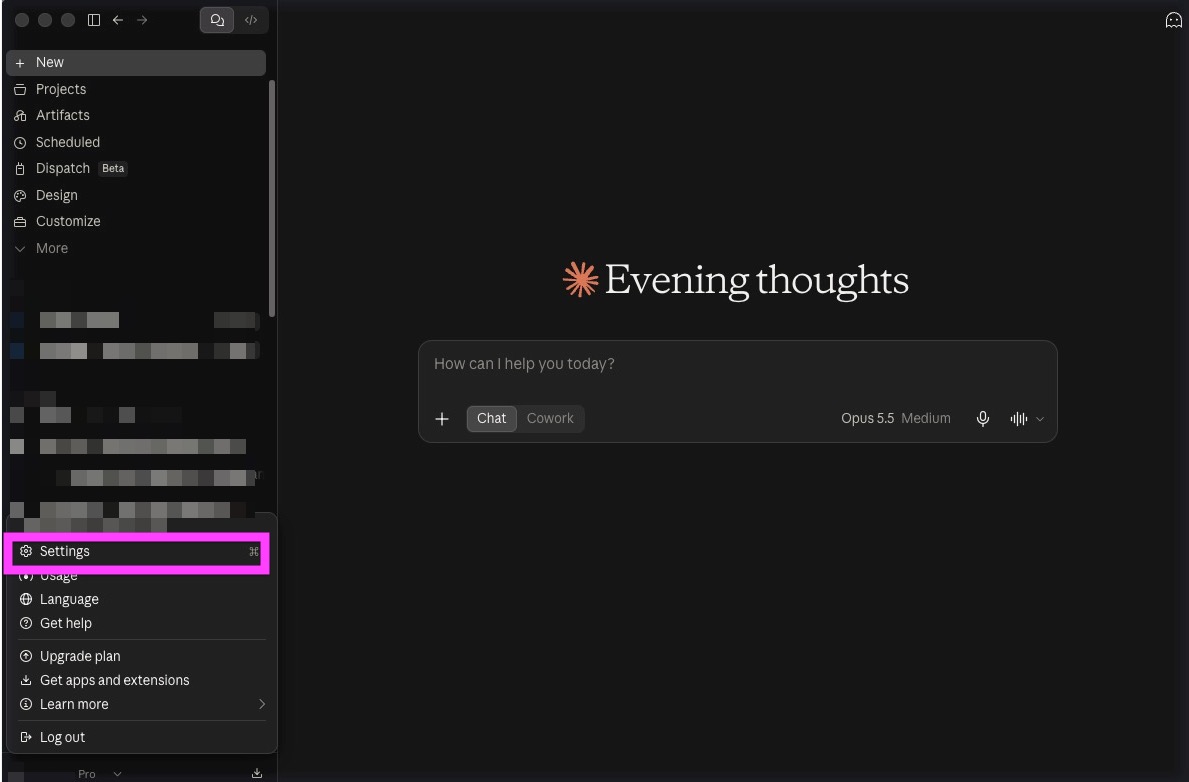
3. Choose Connectors
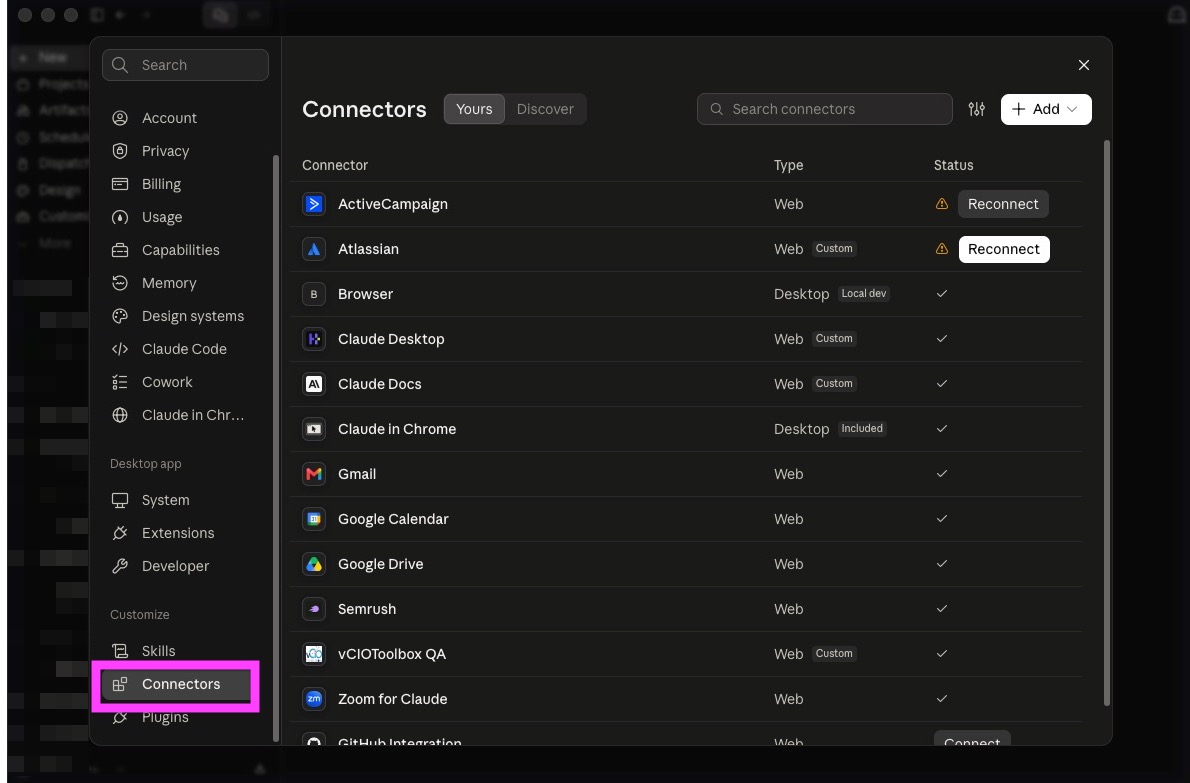
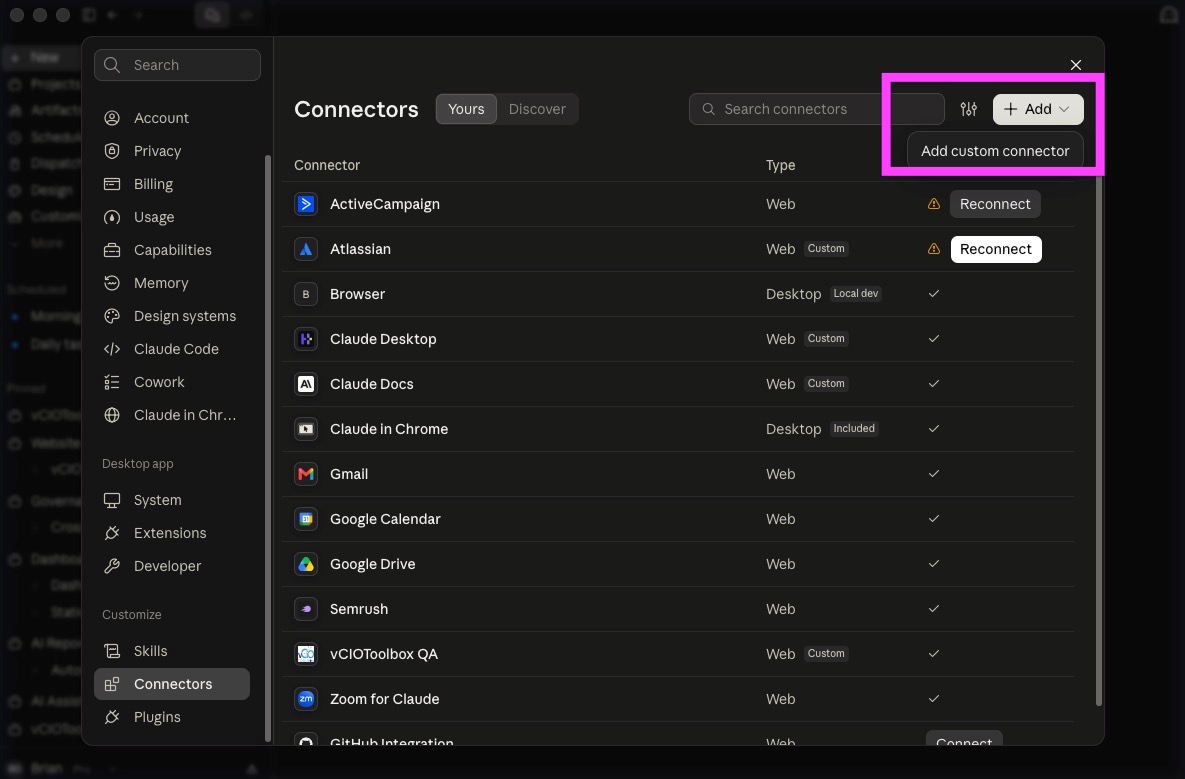
4. Click Add and Add Custom Connector
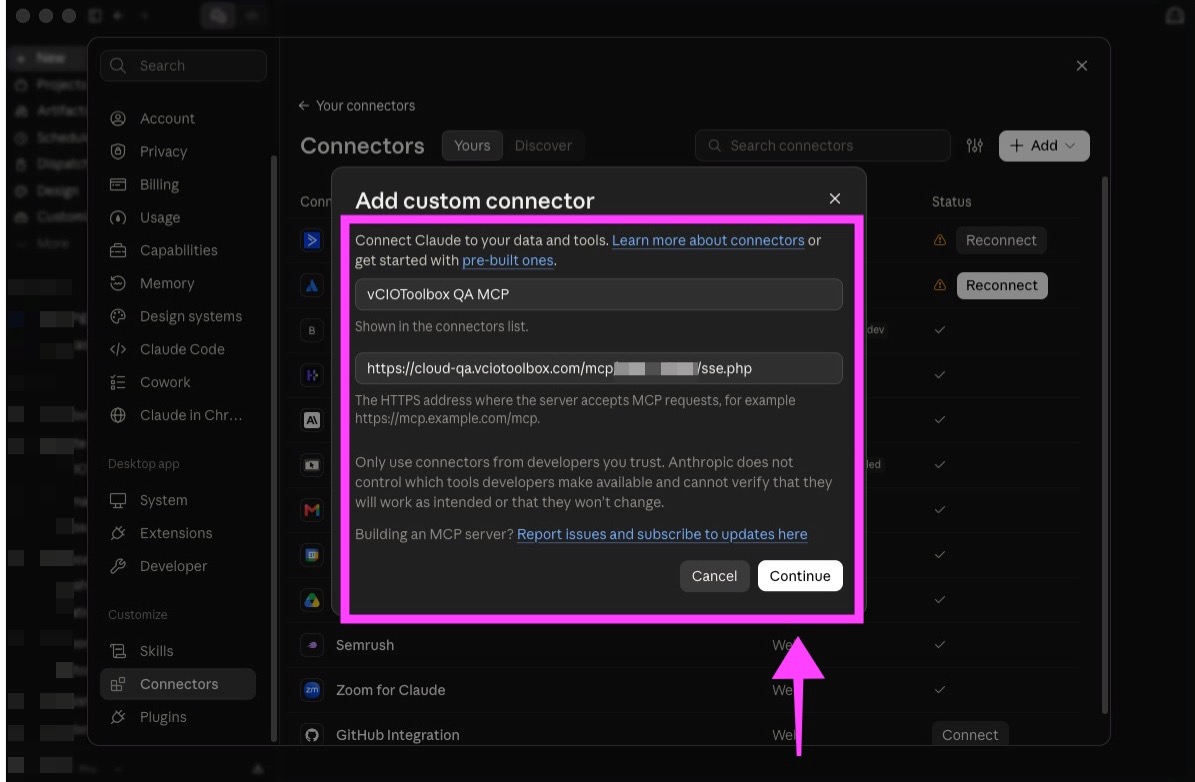
5. Add your custom connector
- Name your server as you want it shown in your connector list.
- Add your unique URL
- Click Continue
6. Confirm that Authentication > Sign in Now and OAuth Client > Register Automatically are selected.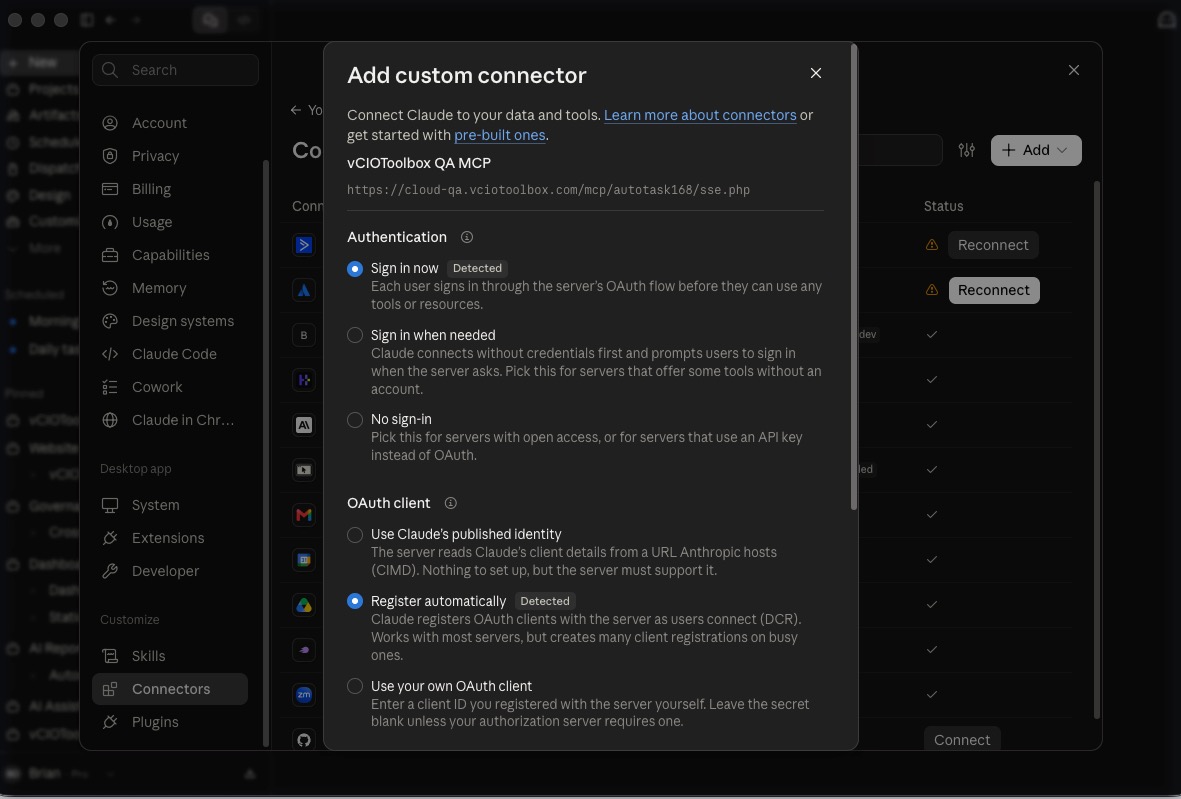
7. Click Add at the bottom of the dialog box.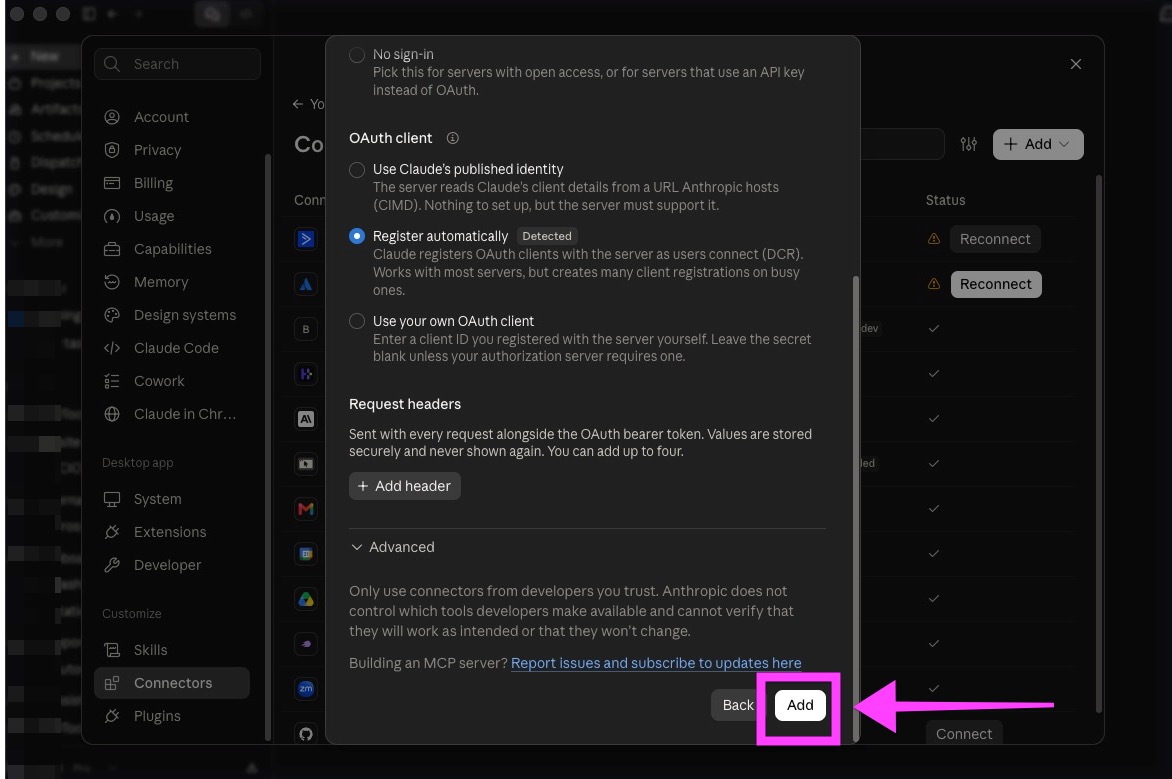
8. You will be prompted to connect to the MCP; click Connect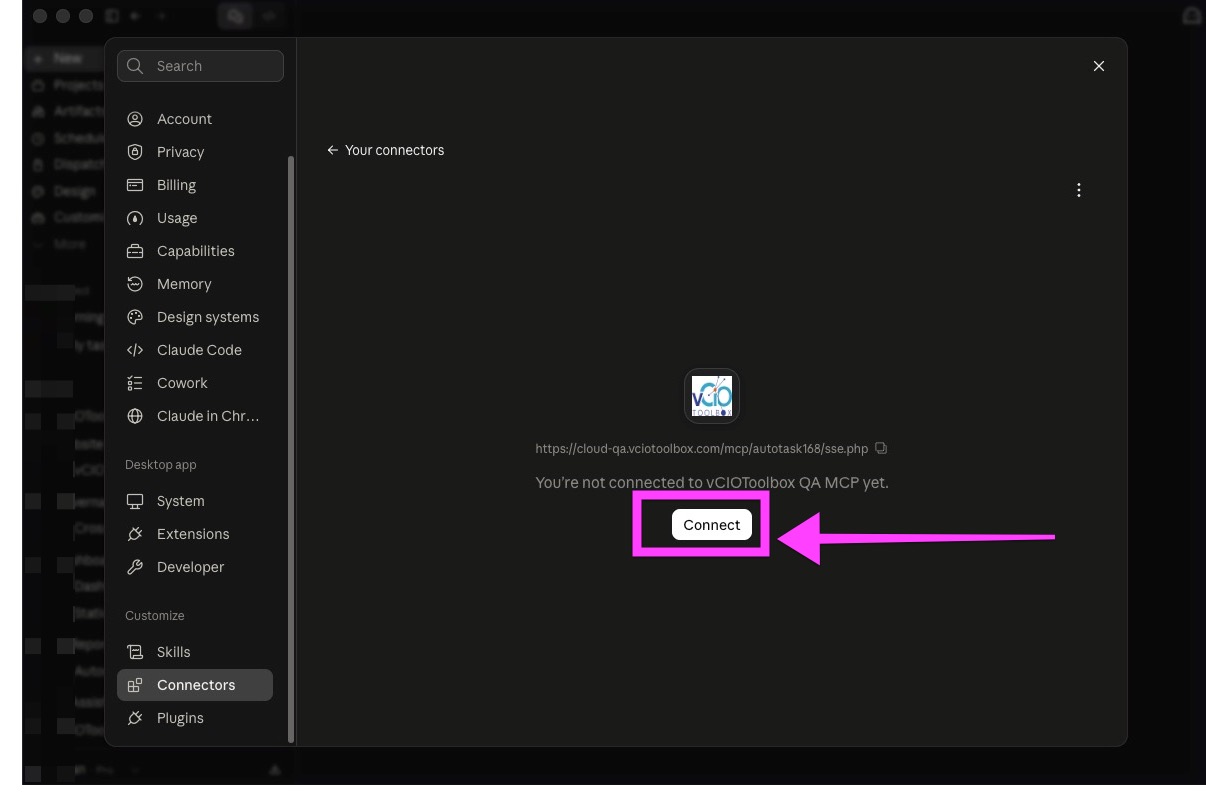
9. A browser windo will open asking you to authorize Claude.
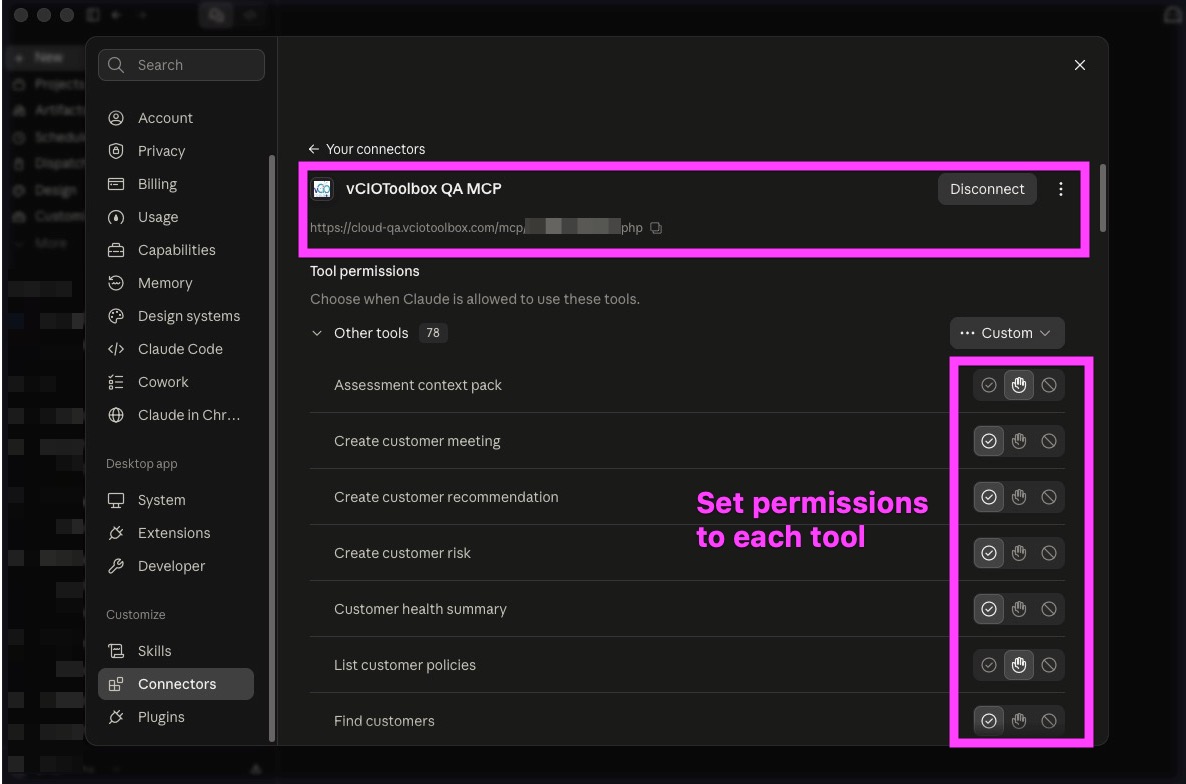
10. Confirm that your connection to the MCP is now operational, and then set your permissions for each tool (or use the custom rules to enable all).
11. To test, start a new chat, ask a question, view the transaction calling vCIOToolbox MCP, and confirm a response.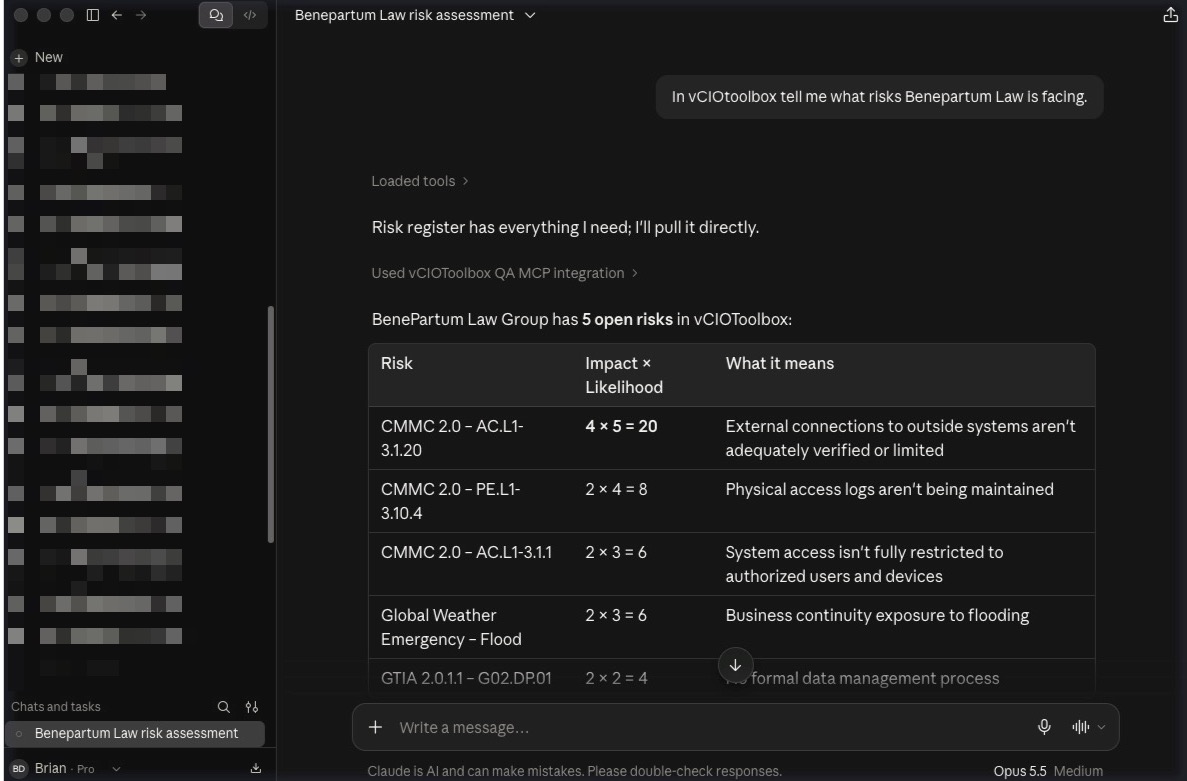
if you have any difficulties connecting or need some additional assistance, please reach out to support@vciotoolbox.com or directly to your partner development manager