
Note: You will need to request an API key from Augmentt to use with vCIOToolbox.
Prerequisite: Confirm within your PSA settings that Augmentt has been selected as the primary User & Identity Source for vCIOToolbox.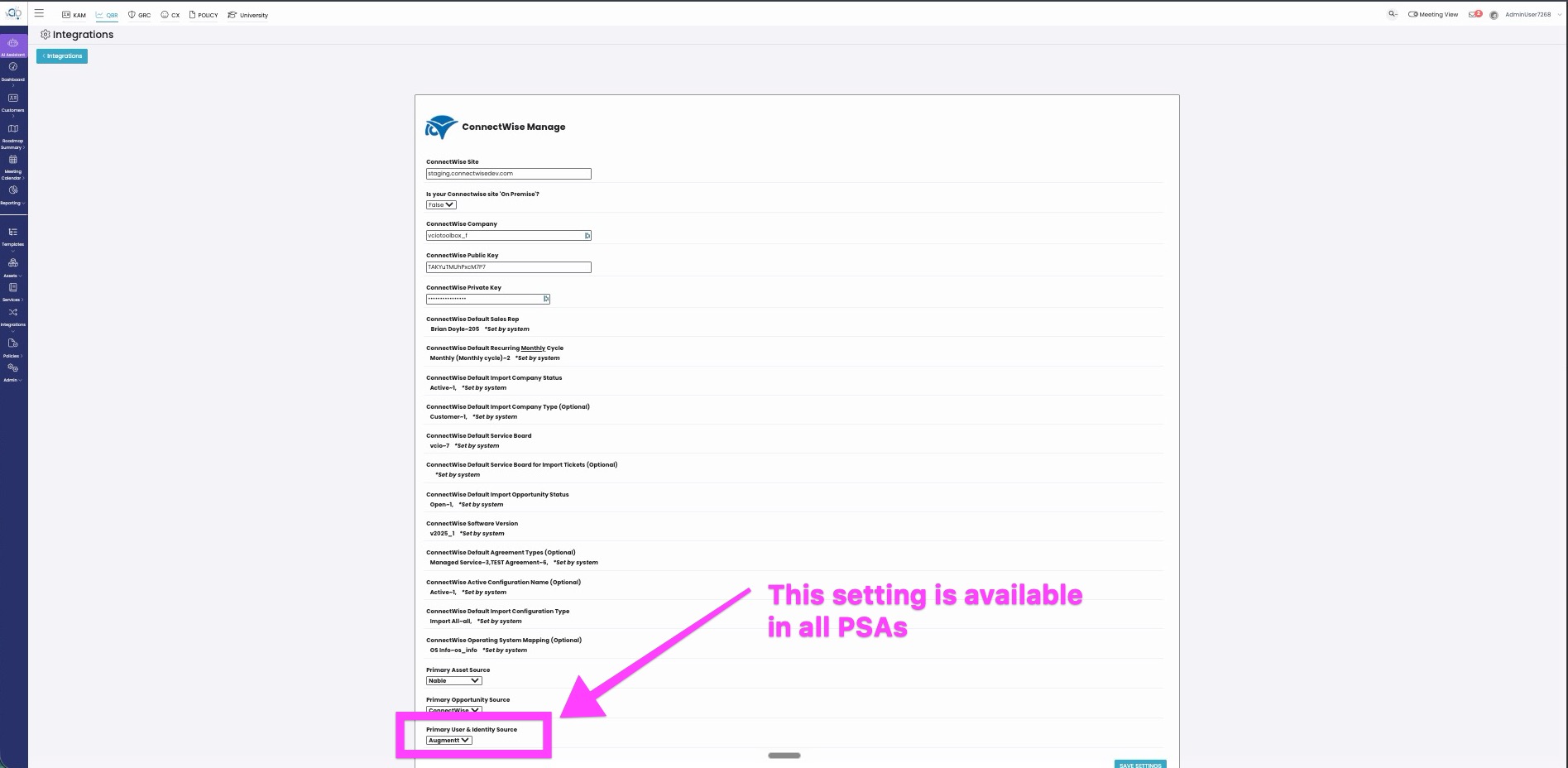
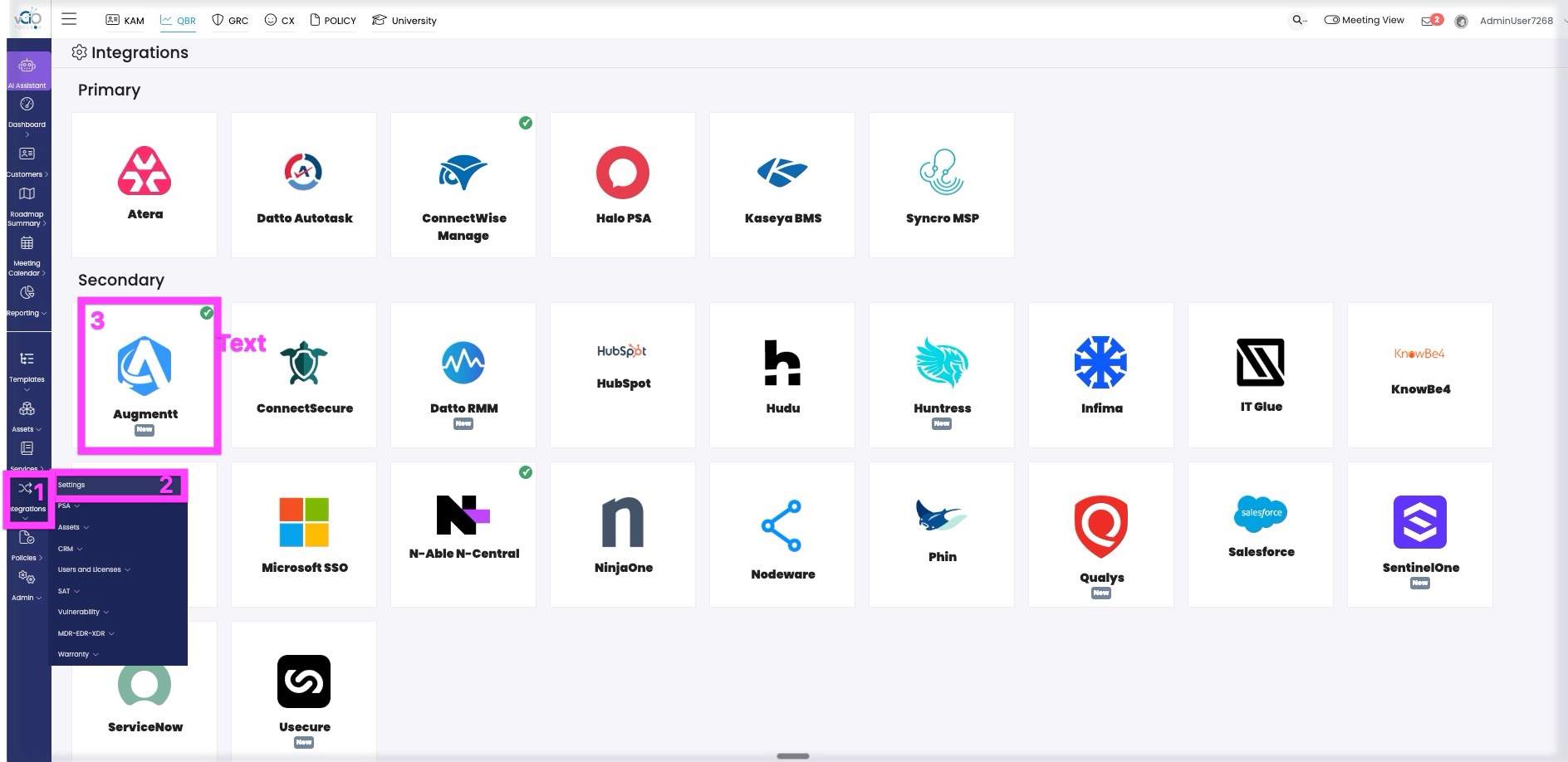
1. From either the QBR or GRC module, navigate to the Left-hand menu and choose Integration > Settings and Click Augmentt.
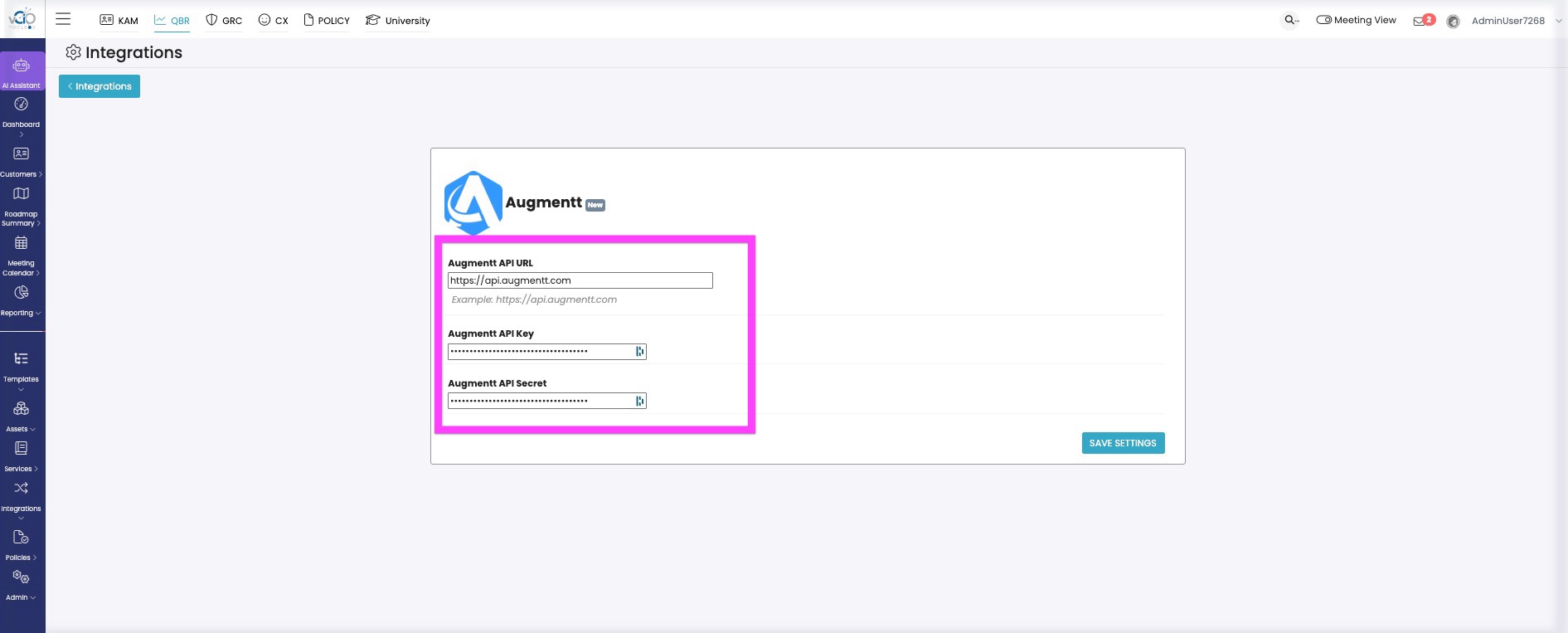
2. Add your credentials to configure the Augmentt connection.
- Add your API URL (api.augmentt.com)
- Add your API Key
- Add your API Secret
- Click Save Settings
3. Navigate to Integrations > Users & Licensing > Augmentt Sync
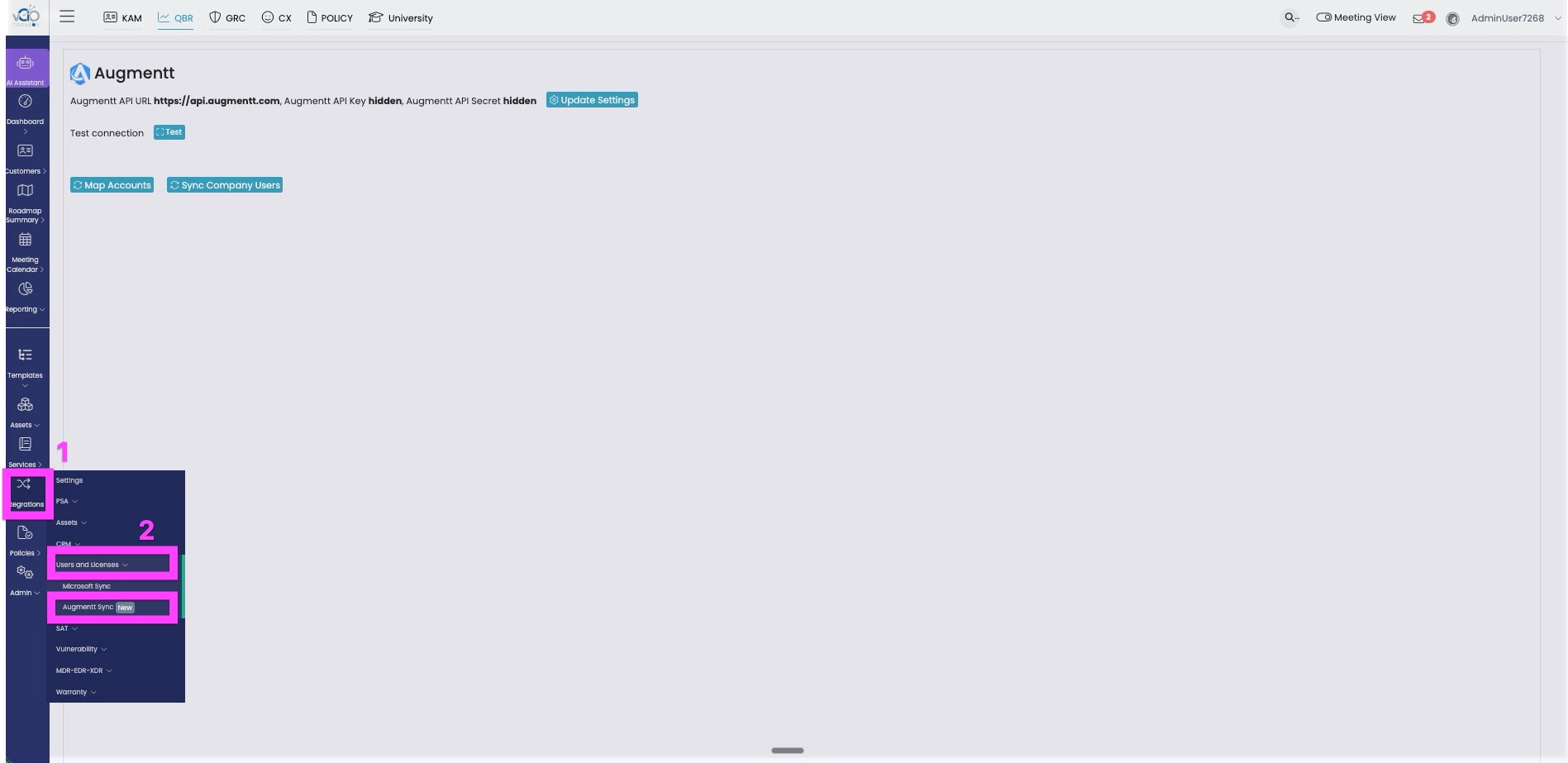
4. Test the Connection and validate connectivity.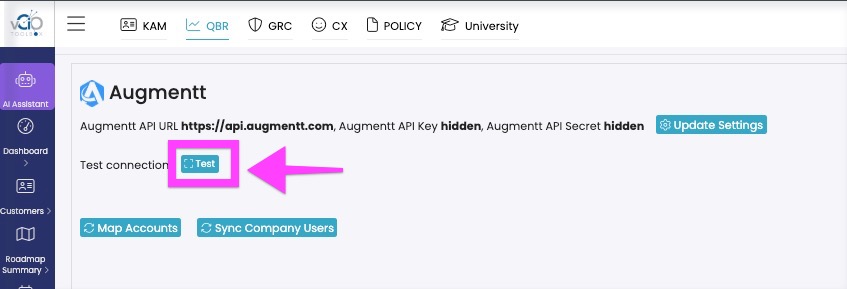
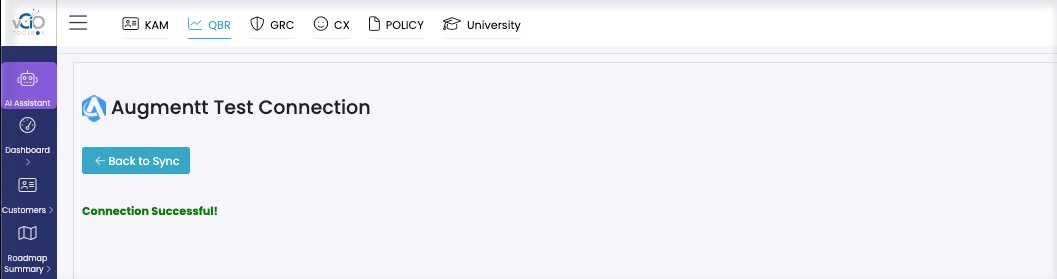
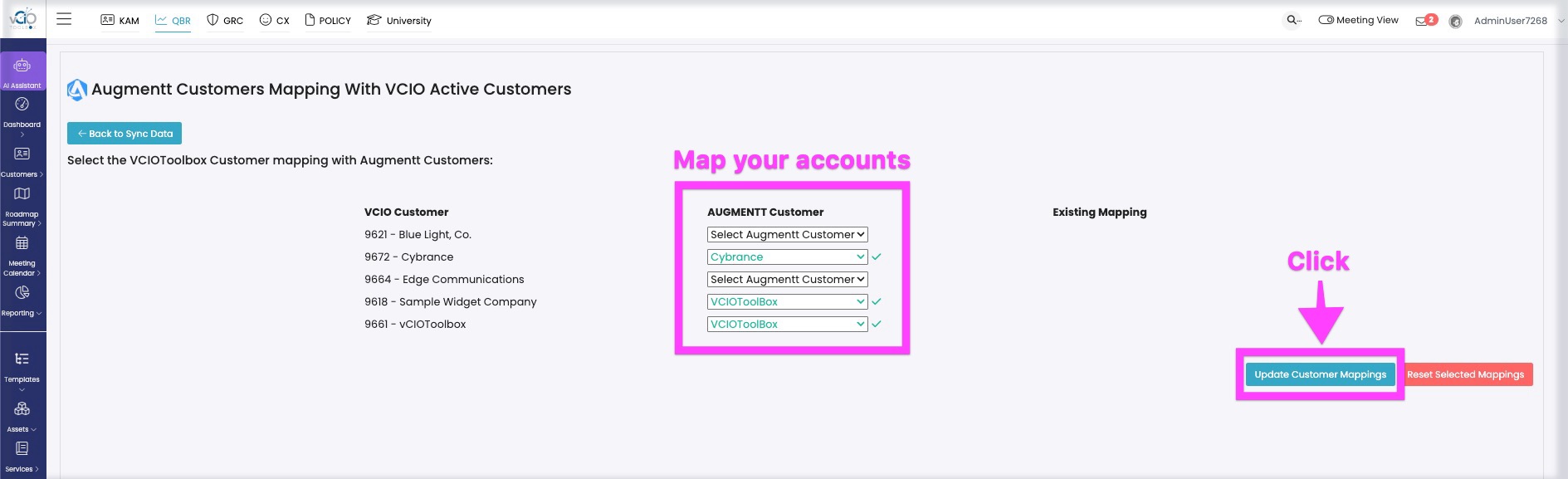
5. Click Map Accounts; vCIOToolbox will auto-align recognized customers and allow you to map all others.
6. Click Sync Company Data: sync the data for each mapped client to vCIOToolbox.
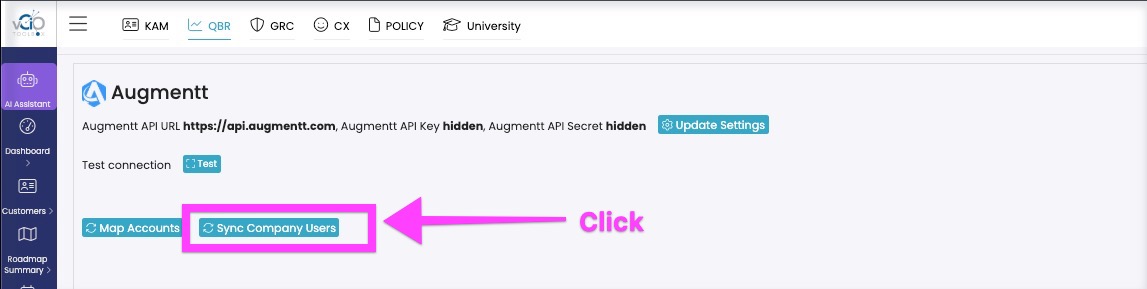
7. View the log for sync confirmation
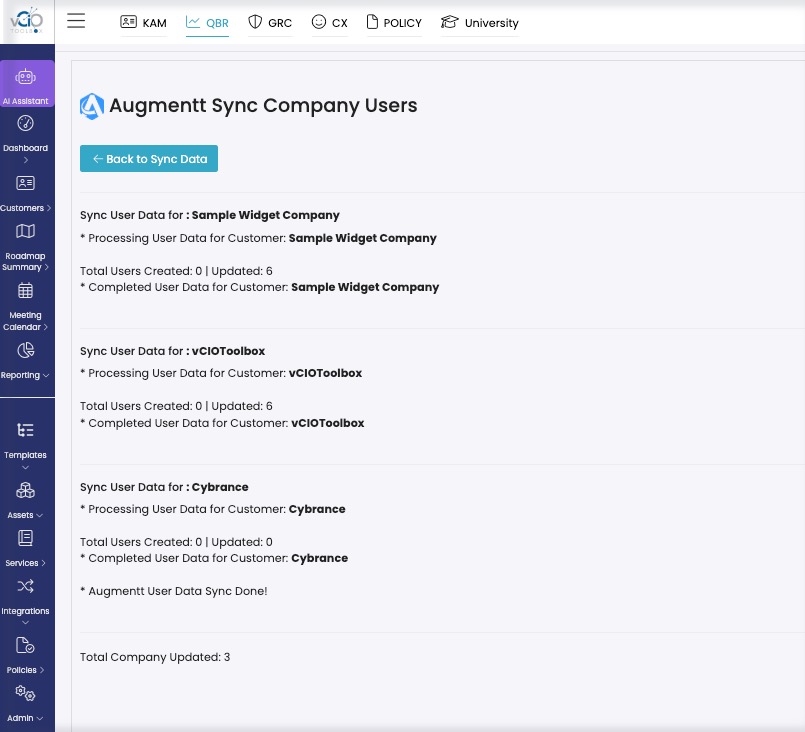
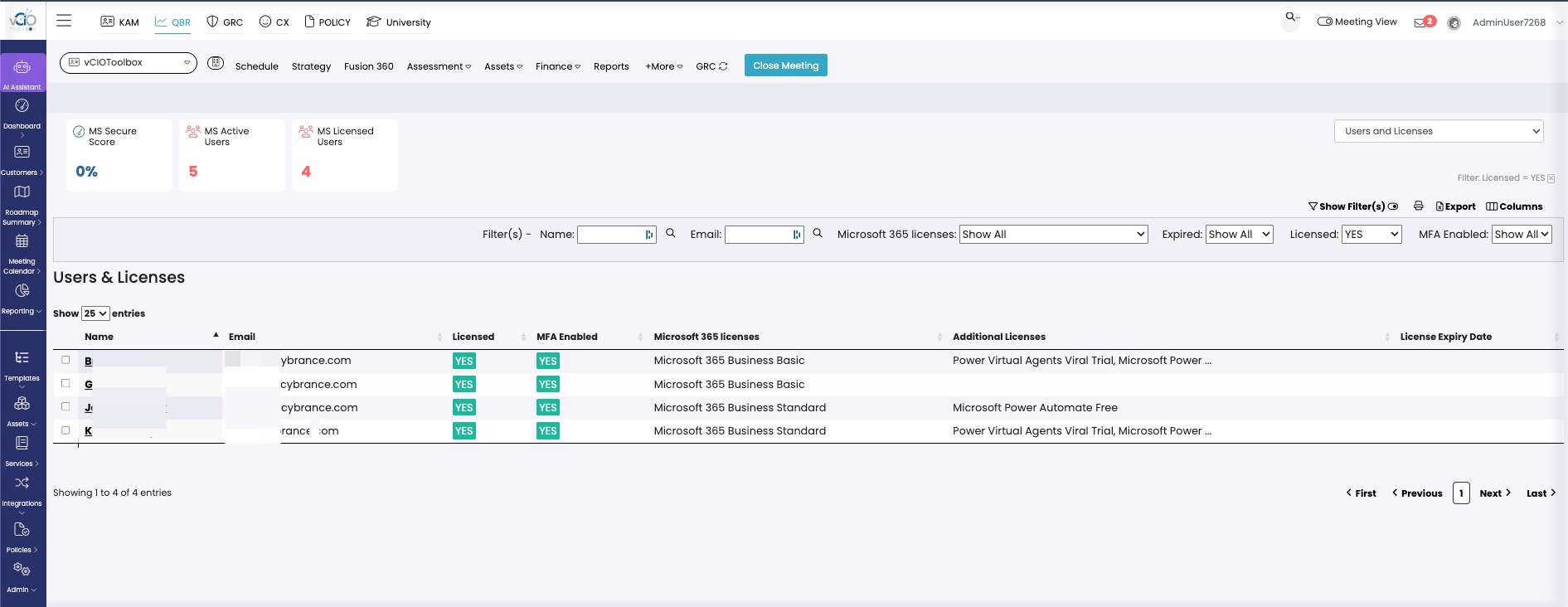
8. Data will now populate in the customer dashboards and can be used in the intelligent audit.
if you need any assistance, please reach out to support@vciotoolbox.com or your partner account manager