
Huntress allows you to pull event and incident data into vCIOToolbox. Event data comes from Huntress reporting, and incidents populate in real time upon sync.
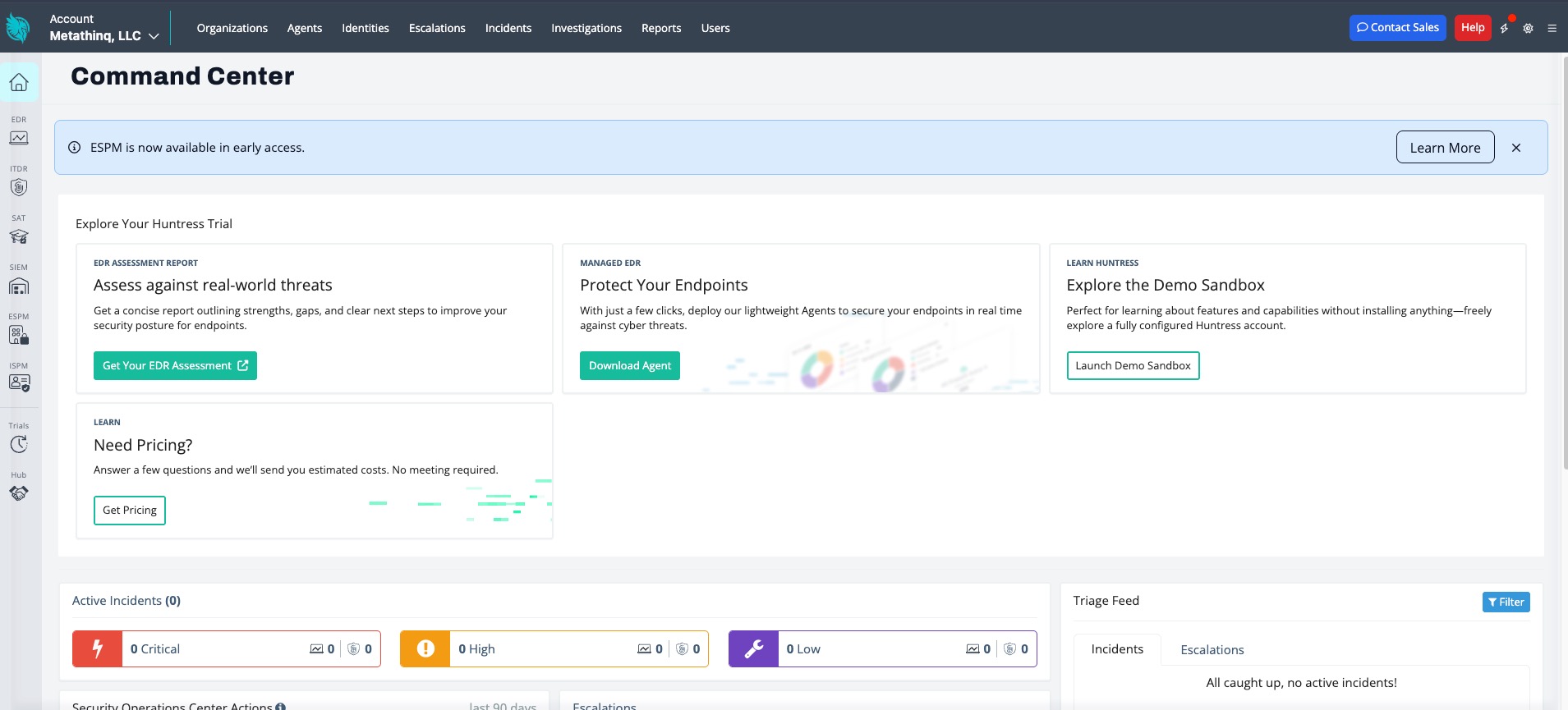
1. Get your Huntress API from the Command Center.
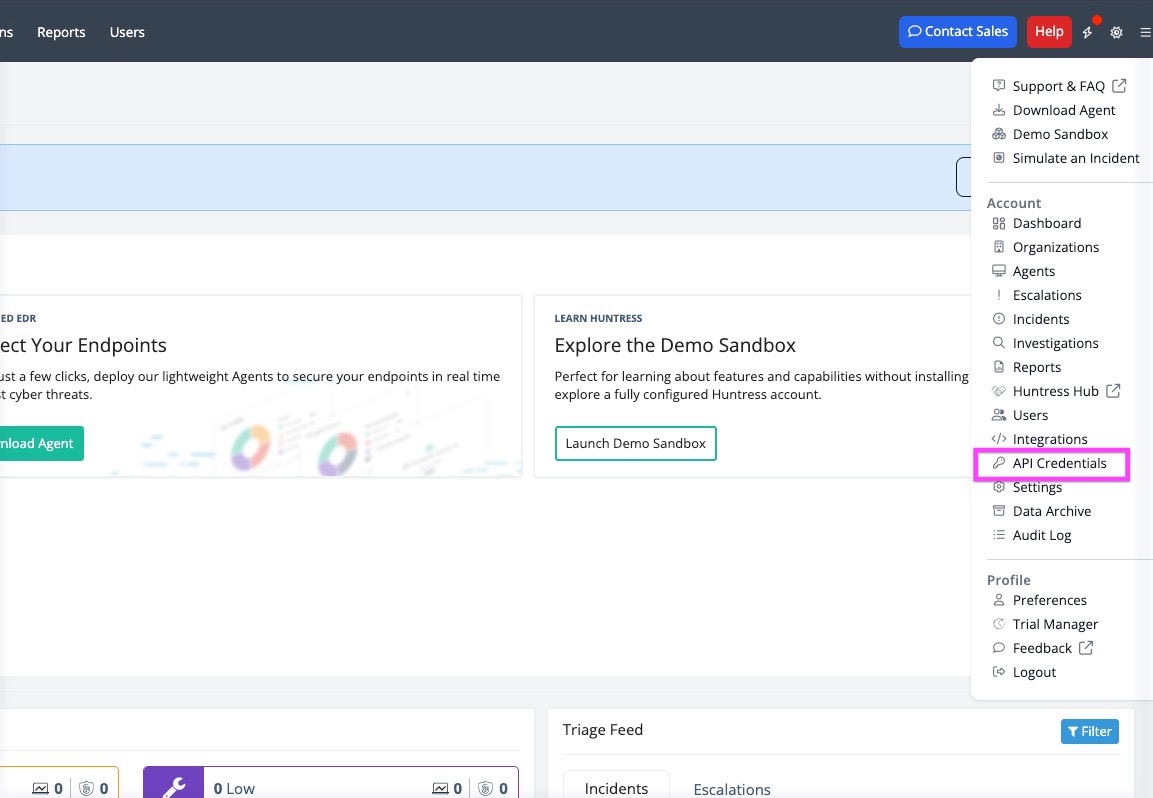
2. Navigate to the hamburger icon in the upper right-hand corner and choose API Credentials from the dropdown.
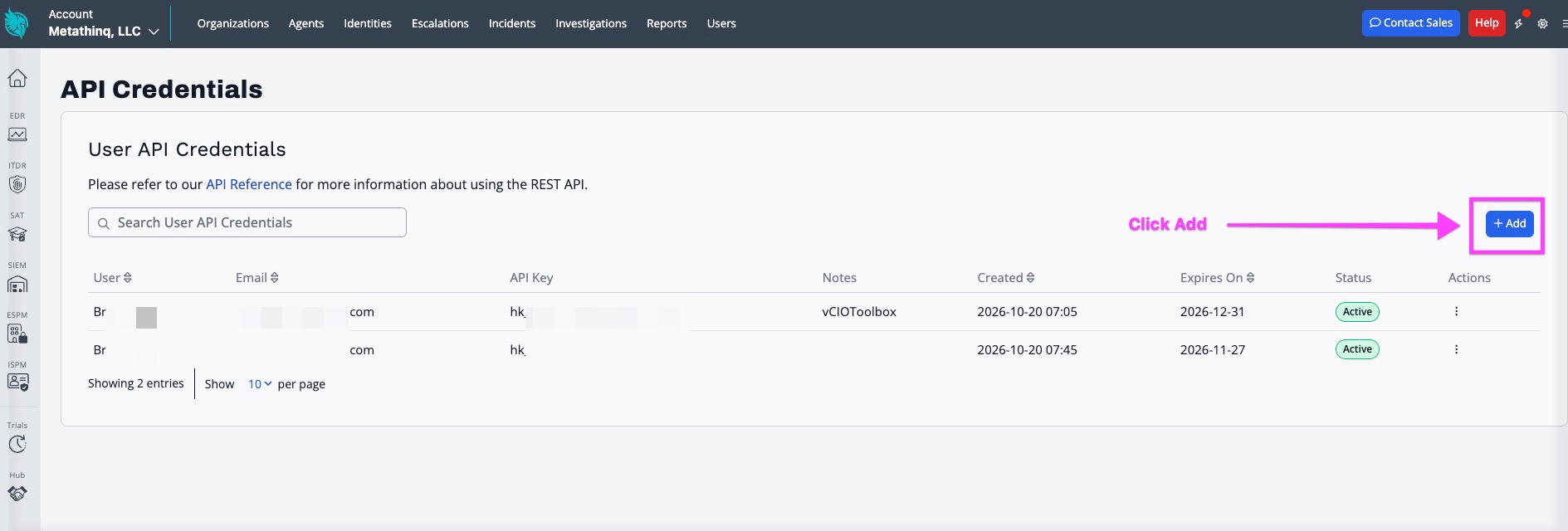
3. Click Add and follow the steps to create your key
Notes:
- Ensure your credentials have administrative rights.
- Save your client secret; you won't see it again after you create the key.
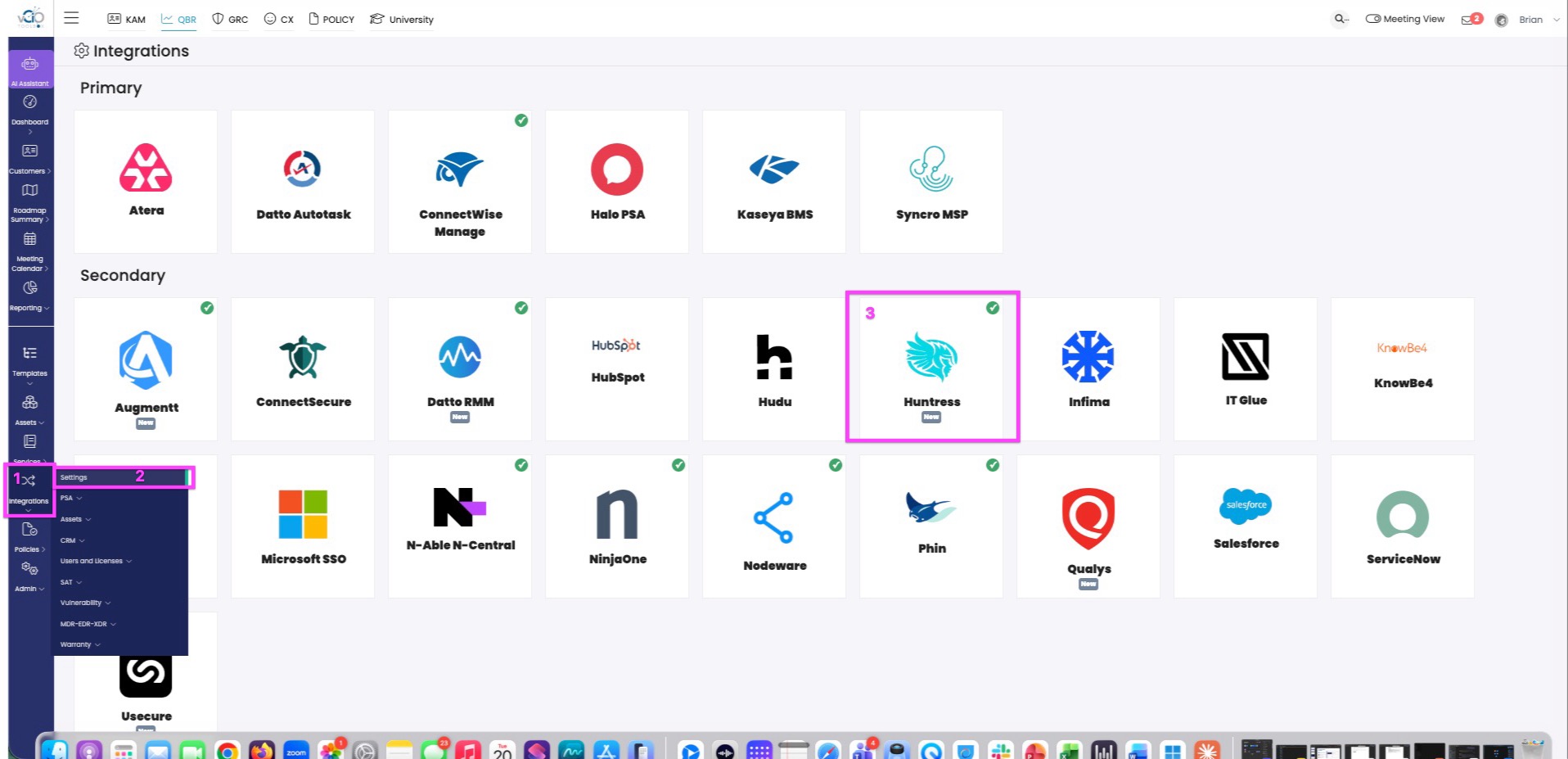
4. In vCIOToolbox, navigate to the QBR or GRC module and, on the left-hand menu, select Integrations > Settings > Huntress.
5. Huntress has a global API URL https://api.huntress.io. Add that to the API URL box and add your previously generated API Key and API Secret. 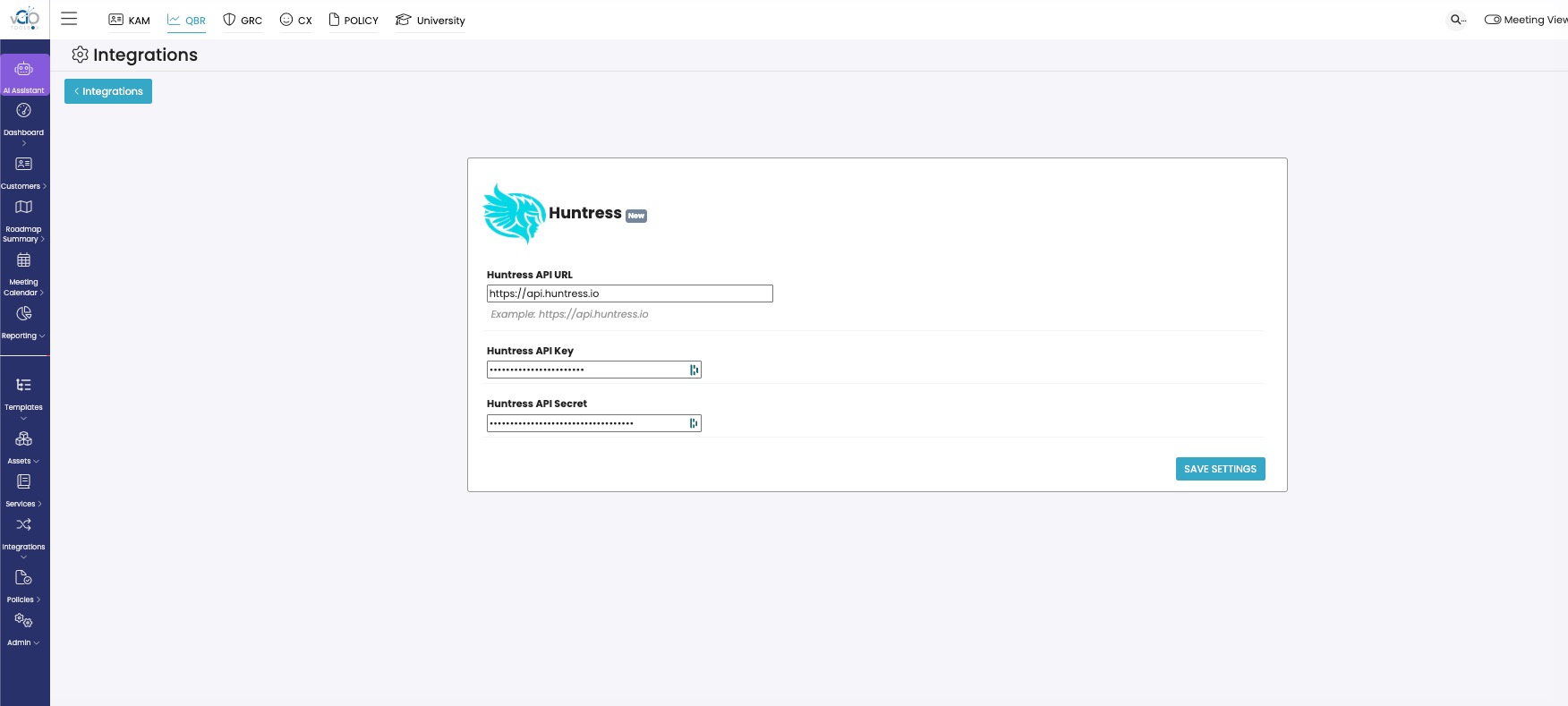
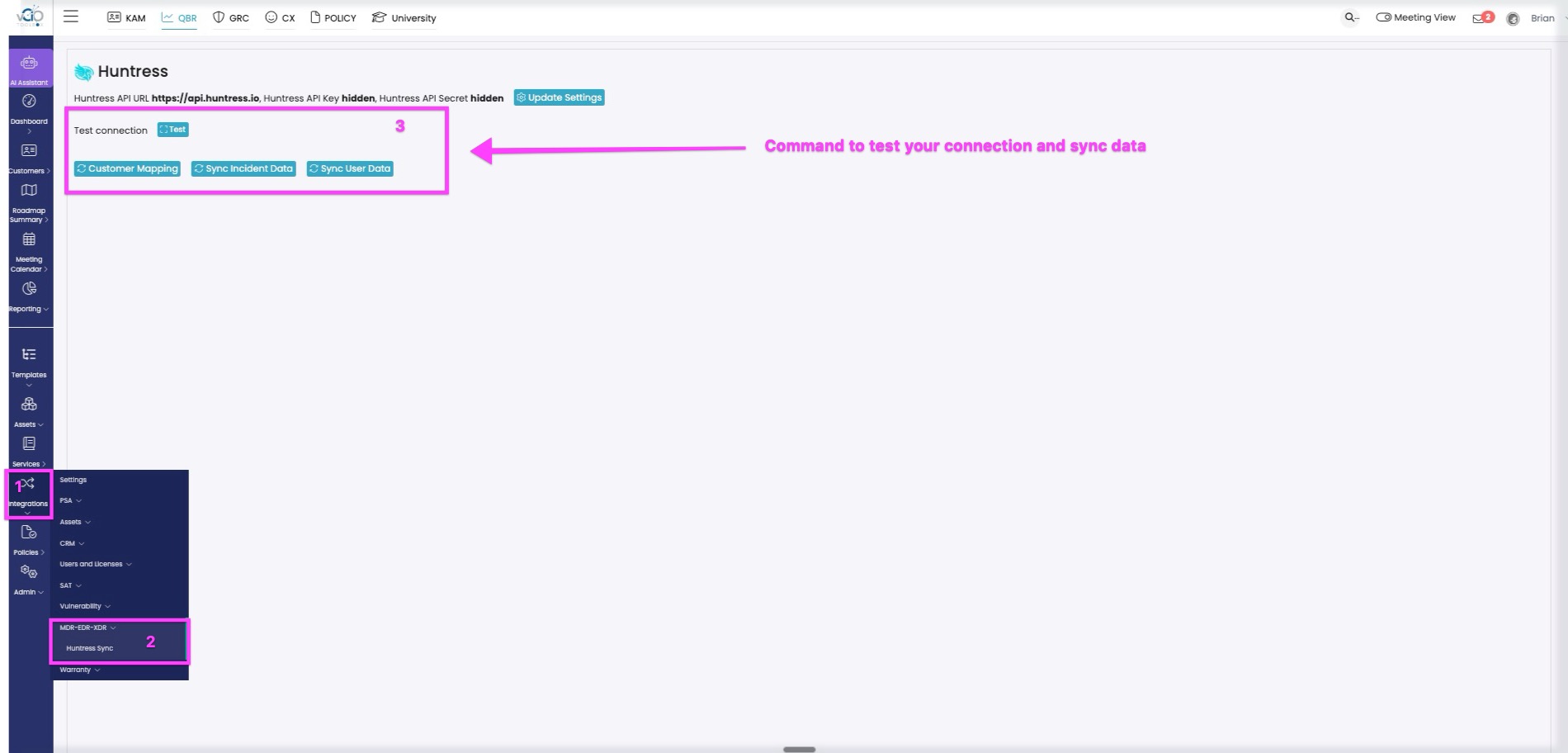
6. Once you have this set up, navigate to Integrations > MDR-EDR-XDR > Huntress to test connectivity and sync data.
7. After testing connectivity, Sync Customer Mapping First. Intelligent mapping should set most accounts, and the user just needs to review and set up any account gaps.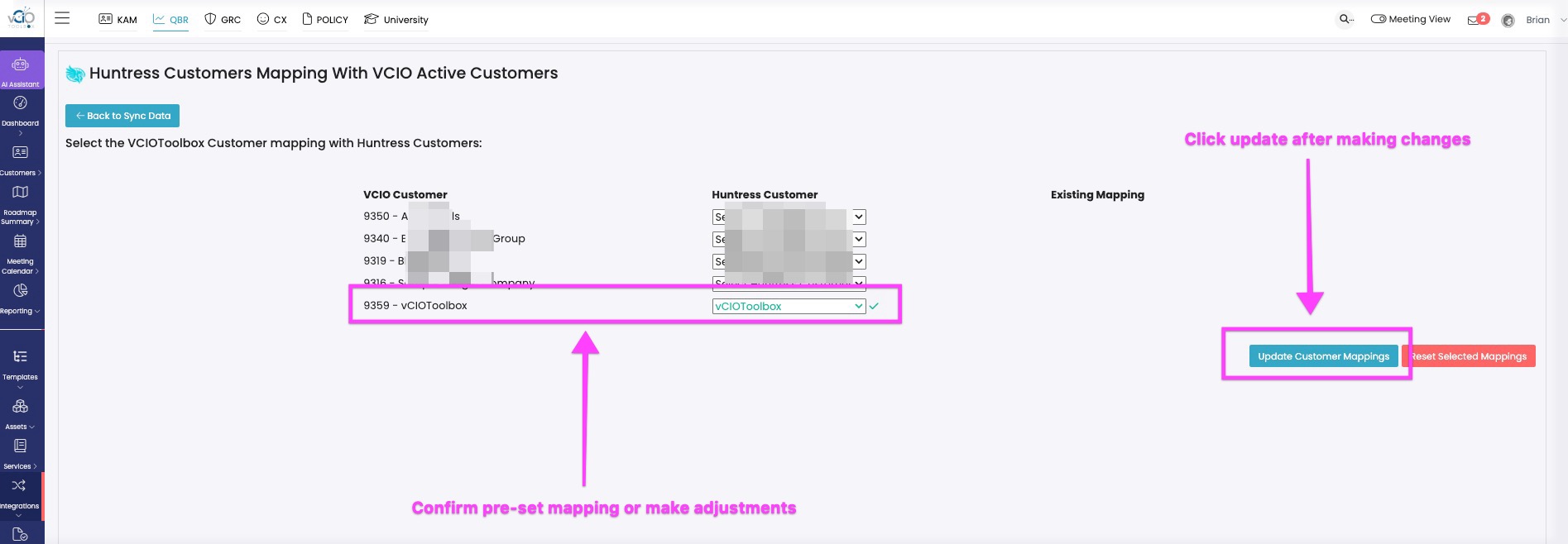
Sync your other data elements: Sync Incident Data and Sync User Data.
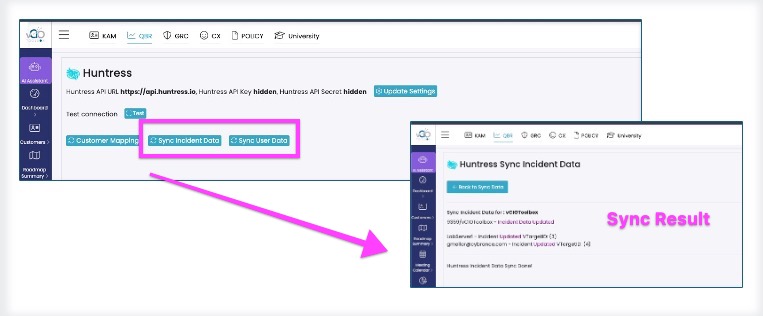
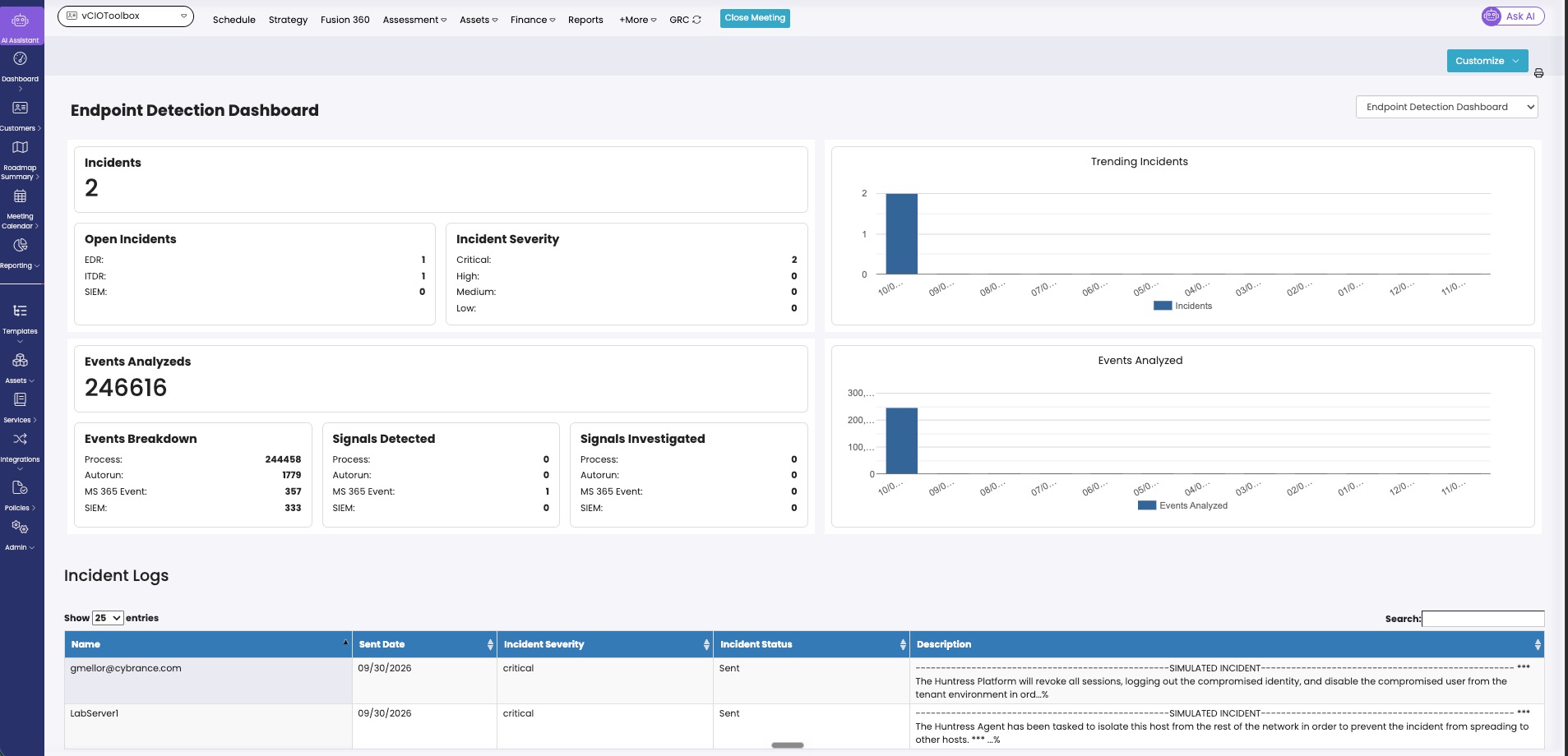
Inspect your dashbaord by either navigating:
- Admin View: QBR or GRC module [CUSTOMER] > More > Dashbaord > [Drop Down] > Endpoint Detection Dashboard.
- Meeting View: Meeting View > [CUSTOMER] > Dashboard > Endpoint Detection Dashboard.
If you have any questions, please let support know at support@vciotoolbox.com or reach out to your partner success manager.